Globluum
SU9 Android Streaming Music Player with Bluetooth & WiFi, 4" Touchscreen MP3/MP4 Player
Couldn't load pickup availability
What's included
What's included
Music Player x1
Protective Case x1
Type-C Charging Cable x1
3.5mm Wired Earphones x1
User Manual x1
Buy more, save more
Buy more, save more
• Buy 3–5 pcs: Discount 1% OFF
• Buy 6–8 pcs: Discount 3% OFF
• Buy 9–11 pcs: Discount 5% OFF
• Buy 12–15 pcs: Discount 7% OFF
• Larger qty: contact us
🎵 Turn On, Tune In
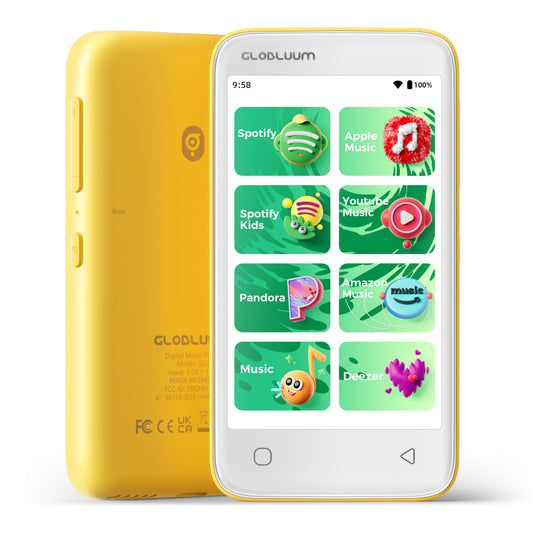
Preloaded streaming apps – just power on and play
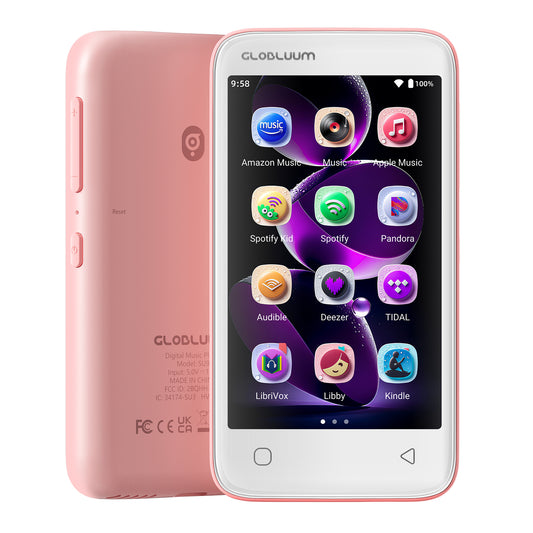
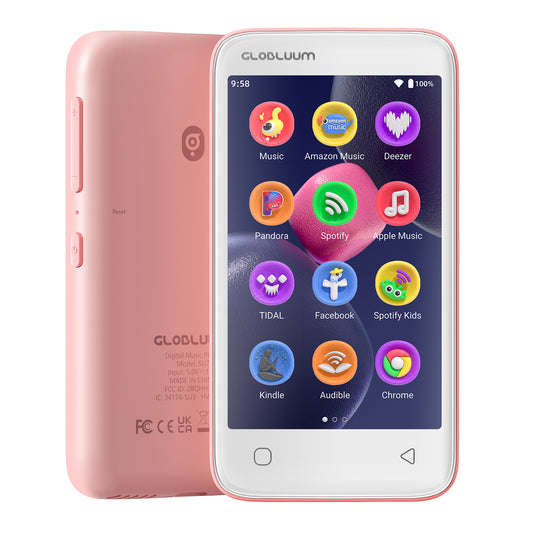
- Spotify, Spotify Kids, Amazon Music, Pandora, Deezer, TIDAL, YouTube Music
- Instantly access music, audiobooks, and podcasts – no setup needed
🎶 Hear Pure, Feel True
HiBy Music with lossless playback & flexible sound modes
- Hardware‑level FLAC/APE decoding for authentic, detailed audio
- Multiple equalizers to shape the sound to your ears
🌙 Bedtime On, Sleep Easy
Soothing audiobooks for restful nights
- Preloaded with Audible, Libby, and LibriVox
- Unwind with timeless stories that gently guide you to sleep
⚡ Power Smart, Play Smooth
12nm CPU – efficient and responsive
- Reduces power use while handling multitasking with ease
- Stable playback and richer audio detail from hardware decoding
☁️ One Account, All Devices
Google account sync keeps everything together
- Playlists, favorites, and subscriptions stay identical across phone, tablet, and player
🎬 Any Format, Always Ready
MX Player preinstalled – no conversion needed
- Supports MKV, AVI, MP4, MOV
- Smooth, stable 1080P video playback
📚 Commute Ready, Travel Friendly
Read online or offline – anywhere
- Kindle and Moon+ Reader Pro preloaded
- Formats: EPUB, PDF, MOBI, TXT
- Sync your library; stories follow wherever you go
📡 Link Steady, Go Anywhere
Reliable wireless connections
- Bluetooth 5.0 for headphones and speakers
- Dual‑band Wi‑Fi for stable streaming on the move
💾 160GB Storage, Smooth Performance
Plenty of room + fast response
- 160GB total (32GB built‑in + 128GB Micro SD card)
- Expandable up to 1TB
- 3GB RAM ensures smooth app switching and quick access to songs, stories, and videos
🎒 Carry Less, Do More
Ultra‑light and protected
- Weighs just 98g – slips easily into pocket or bag
- Protective case included to guard against bumps
✨ Perfect For
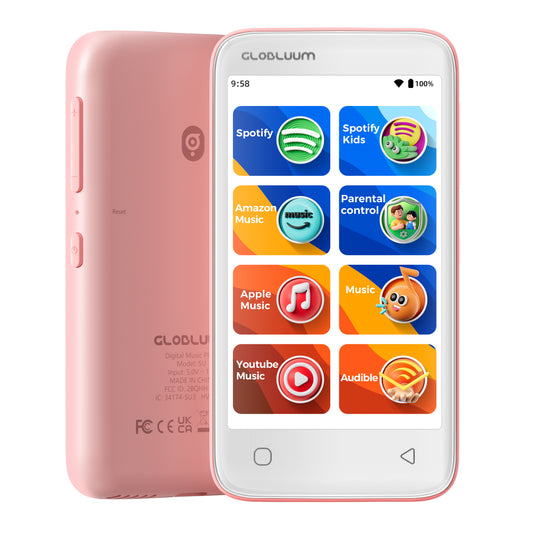
- Parents – kid‑friendly content with parental controls
- Commuters – offline music, audiobooks, and podcasts
- Audiophiles – lossless audio in a compact player
- Travelers – e‑books & video entertainment without Wi‑Fi
🛡️ Our Promise to You
- 30‑Day No‑Reason Returns – free return shipping & full refund
- 1‑Year Warranty – worry‑free protection (subject to local laws)
Share

Designed and Built with Craftsmanship to Create a Music Player.
Crafted with meticulous craftsmanship, our high-quality music player accurately reproduces every subtle detail of music, From deep, resonant bass to crisp, clear highs, every note is rendered with exquisite clarity, offering an unparalleled high-fidelity audio experience.. Let your musical journey feel like being on-site, delighting your ears and touching your heart.
Android 14 with Google Play
Automatic updates and Google account sync make your playlists, favorites, and subscriptions flow seamlessly across phone, tablet, and player.
Through Google Play, you can easily add every app your loves.
And with parental controls, you can gently set boundaries – giving your child access only to what you trust.
Everything in sync. Everything at ease.
Efficient 12nm, Smooth and Detailed
Efficient 12nm – Smooth Performance, Richer Sound
Lower power use and smoother multitasking, plus hardware‑level lossless decoding for FLAC, APE, ALAC, WAV, AIFF, and more – delivering stable playback and beautifully detailed audio.
Hear the truth. Lose yourself in the music.
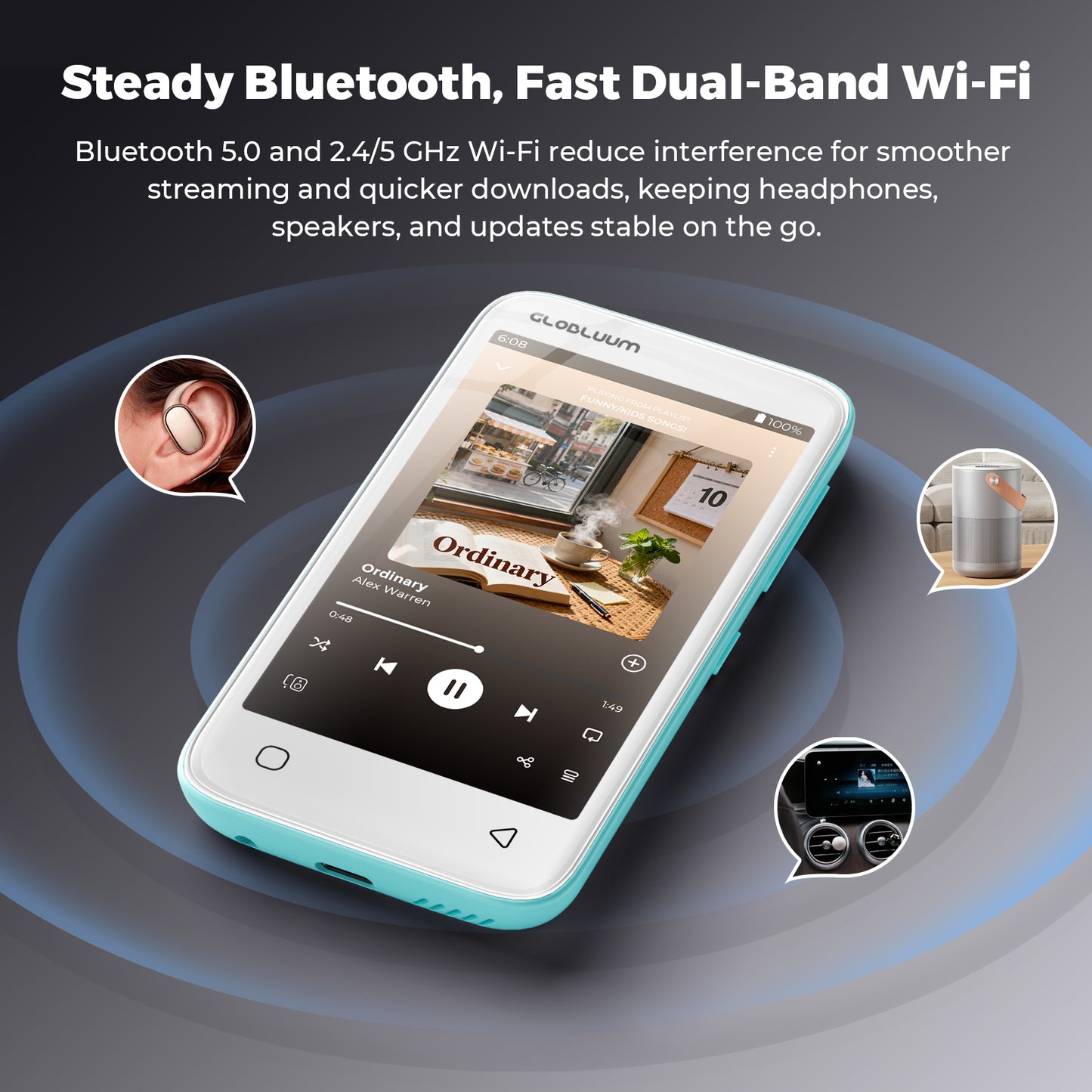
Dual‑Band Wi-Fi + Bluetooth 5.0
Stable, high‑speed connections for seamless multi‑device experiences.
Pair with your Bluetooth earbuds and get lost in your music during your daily commute.
Connect to a Bluetooth speaker and share favorite tunes with family in the living room.
Link to your car’s Bluetooth audio system and enjoy a lively soundtrack on every road trip.
At home, on the go, or behind the wheel – your sound stays smooth and uninterrupted.
The Music Player for Your Daily Rhythms
Fixed on your fridge, it fills your home with a motivating soundtrack that turns cleaning into a breeze.
The Music Player for Life's Easy Rhythms
Find your pause button. Lean back and let the music float through a peaceful afternoon.
Unlock a Massive 1TB of Music
Expand your space anytime to carry your entire music collection in your pocket.
Common Questions & Answers
How to Transfer Files from Your Computer to Music Players (SU3 / SU5 / SU7 / SU9)
Preparation:
- Ensure your computer is running Windows 7 or later, macOS, or Linux.
- Use a high-quality USB-A to USB-C cable (data sync capable, not just charging).
- Make sure your SU series player (SU3/SU5/SU7/SU9) has sufficient battery level (above 20%) to avoid interruption.
Step-by-Step Guide:
1. Connect the device
Plug the USB-C end into your SU player and the USB-A end into your computer's USB port. For older desktops, use a rear USB port for stable power.
2. Unlock the player and select USB mode
On the player screen, swipe down from the top to open notification panel. Tap the USB notification and select "File Transfer" or "MTP (Media Transfer Protocol)". Do NOT choose "Charging only" or "USB tethering".
3. Verify connection on your computer
- Windows: Open File Explorer → "This PC". Look for a device named "SU3", "SU5", "SU7", or "SU9" under "Portable Devices". If not there, open Device Manager → expand "Portable Devices" or "Universal Serial Bus devices". A yellow exclamation mark indicates missing driver.
- macOS: Install Android File Transfer or OpenMTP first. After connection, launch the app; it should detect your SU player automatically.
- Linux: Most distributions will mount the SU player as an MTP device. Use Nautilus or mtp-detect.
4. If the device is not recognized
- Try a different USB cable (many cables are charge-only).
- Restart both the SU player and your computer.
- Update or reinstall the MTP driver:On Windows, right-click Start → Device Manager → right-click the unknown device → "Update driver" → "Search automatically for drivers".If that fails, download "Universal MTP Driver" from Microsoft or use the manufacturer's driver.
5. Transfer files
Once recognized as a drive or device:
- Double-click the SU device icon to open internal storage or microSD card (if inserted).
- Simply drag and drop music folders (MP3, FLAC, WAV, etc.) onto the desired folder (e.g., "Music").
- Do NOT disconnect while transfer is in progress.
6. Safely eject the device
On Windows, right-click the SU drive in "This PC" and select "Eject". On macOS, drag the mounted volume to Trash (which turns into Eject icon). Then unplug the cable.
Troubleshooting common issues:
- "Device not responding": Reboot both devices and try a different USB port.
- Transfer stops halfway: Check cable stability; avoid USB hubs.
- MTP driver failure: Manually download "MTP Portable Device" driver from Windows Update Catalog.
- On Linux, permission denied: Install mtp-tools and mtpfs, then use jmtpfs to mount.
Pro tip: For very large music libraries (e.g., 1TB), use a microSD card reader instead of USB MTP, as MTP can be slow for thousands of small files. Copy directly to the microSD card via an adapter.
How to Connect Bluetooth Headphones or Speakers to Players (SU3 / SU5 / SU7 / SU9)
Before you start:
- Make sure your Bluetooth headphone/speaker is fully charged and in pairing mode (usually indicated by a blinking LED). Refer to its manual for the specific button press (e.g., hold power button for 5 seconds).
- Keep the SU player and the Bluetooth device within 1 meter of each other during pairing.
- Disable Bluetooth on any other nearby phones or tablets to avoid interference.
Step-by-step pairing:
- Enable Bluetooth on the SU player
Go to Settings → Bluetooth → Toggle Bluetooth ON. The player will automatically scan for available devices. - Put your Bluetooth device into pairing mode
Most devices enter pairing mode by holding the power/multi-function button until the LED flashes red and blue alternately. Consult the device manual if unsure. - Select your device from the list
On the SU player, under "Available devices", you should see the name of your headphone/speaker. Tap on it. A confirmation sound or "Connected" status will appear. - Test the connection
Play a song to verify audio is routed to the Bluetooth device. Adjust volume on both the player and the headphone/speaker.
If your device is not found in the list:
- Step 1: Turn Bluetooth OFF on the SU player, then turn it ON again. This triggers a fresh scan. Wait 10–15 seconds.
- Step 2: Ensure your Bluetooth device is still in pairing mode (some devices exit pairing mode after 2 minutes).
- Step 3: Restart both the SU player and the Bluetooth device (power cycle).
- Step 4: Clear previous pairings on the SU player: go to Bluetooth → Paired devices → tap the gear icon next to any old device → "Forget". Then re-scan.
- Step 5: If still not found, reset Bluetooth settings on the SU player (without factory reset):
Go to Settings → System → Reset options → Reset Wi-Fi, mobile & Bluetooth (this does not erase music files). - Step 6 (last resort): Factory reset the SU player.
Warning: This will erase all settings, paired devices, and possibly internal storage data. Backup first.
Go to Settings → System → Reset → Factory data reset.
Advanced troubleshooting for technical users:
- Codec compatibility: SU series supports SBC, AAC. If your headphones support aptX HD or LDAC, they will fallback to a compatible codec. No additional driver needed.
- Interference: 2.4 GHz Wi-Fi can interfere with Bluetooth. Temporarily switch Wi-Fi to 5 GHz or turn it off during pairing.
- Multiple connections: SU players do not support simultaneous connection to two Bluetooth audio devices. If you need to switch, disconnect the current one first.
- Range issues: After pairing, maximum range is about 10 meters (33 feet) line-of-sight. Walls reduce range.
- Firmware update: If Bluetooth is unstable, check the manufacturer's website for a firmware update for your SU player.
Pro tip: For best audio quality, disable Bluetooth absolute volume (if available in Developer Options) to prevent compression. Also, avoid using Bluetooth while the player is connected via USB to a computer, as that can cause audio glitches.
How to Ensure Successful WiFi Connection on Players (SU3 / SU5 / SU7 / SU9)
Before you start:
- Make sure your SU player's system time and date are correct (incorrect time can cause authentication failures).
- Keep the player within 2–5 meters of your WiFi router during initial setup.
- Know your WiFi password (case-sensitive).
Supported WiFi standards:
- SU series supports dual-band WiFi: 2.4 GHz (802.11 b/g/n) and 5 GHz (802.11 a/n/ac).
- Security modes: WEP, WPA, WPA2 (Personal), WPA3 (if supported by firmware; check your device).
- Both hidden SSID and broadcast SSID are supported.
Step-by-step connection:
- Go to Settings → Network & Internet → WiFi.
- Toggle WiFi ON and wait for the scan to complete (5–10 seconds).
- Select your network from the list. Networks may show frequency bands (2.4G or 5G) if available.
- Enter the password carefully (use "Show password" if needed).
- Tap "Connect". Wait for the status to change to "Connected".
Critical checks for successful connection:
- Not outdoor/public WiFi with captive portal – Public hotspots often require a web login. SU players cannot handle captive portals.
- No MAC address filtering (unless whitelisted) – If your router has MAC filtering enabled, add the SU player's MAC address to the allow list. Find MAC address in Settings → About → Status.
- DHCP enabled – The player must obtain an IP address automatically via DHCP. Static IP is possible via advanced settings (Modify network → Advanced → Static IP).
- Compatible band – 2.4 GHz is recommended for longer range; 5 GHz offers faster speed but shorter range. Make sure your router broadcasts the band you intend to use.
- Channel selection – For 5 GHz, avoid DFS channels (52–144) if your player has poor detection – use non-DFS channels like 36–48 or 149–165.
Troubleshooting when connection fails:
Network not visible?
- Ensure the router's SSID is not hidden (hidden networks are supported, but you must manually add them via "Add network").
- If using 5 GHz, move the player closer to the router (5 GHz has shorter range).
- Reboot the router and the SU player.
"Authentication error" (wrong password)?
- Double-check password case sensitivity.
- Try removing special characters from the password temporarily (some devices have issues with $, &, #).
"Failed to obtain IP address"?
- Log into your router and ensure DHCP server is enabled.
- Increase the DHCP address pool or reduce lease time.
- Reboot both devices.
Connected but no internet?
- Check if the router requires a captive portal login. SU players cannot use such networks.
- Verify that your internet connection is active on other devices.
Connection drops frequently?
- For 2.4 GHz: interference from microwaves, cordless phones, or neighboring routers. Change channel to 1, 6, or 11.
- For 5 GHz: DFS channels can cause drops when radar signals are detected. Switch to non-DFS channels (e.g., 36, 40, 44, 48, 149, 153, 157, 161).
- Update the SU player's firmware.
Advanced tips for technical users:
- Preferred band selection: In Developer Options (enable by tapping Build Number 7 times), you can set "WiFi Frequency Band" to 2.4 GHz only, 5 GHz only, or auto. This helps when both bands share the same SSID.
- Static IP: Modify network → Advanced → Static IP (useful if DHCP is unreliable).
- WiFi power saving: In Developer Options, disable "WiFi power saving" for more stable streaming (slightly higher battery drain).
- Check router logs: Look for "deauth", "association timeout", or "DHCP failure" entries.
Pro tip: If you travel with your SU player, create a mobile hotspot from your phone (5 GHz capable phones will provide 5 GHz hotspot). Test connection there to isolate player issues from router issues.
How to Securely Insert and Use an SD Card in Players (SU3 / SU5 / SU7 / SU9)
Supported SD Card Specifications:
- Type: microSD, microSDHC, microSDXC
- Maximum capacity: Up to 1TB (for all SU series models)
- File system: FAT32 or exFAT (NTFS is not supported). Cards above 32GB are typically pre-formatted as exFAT.
Step-by-Step Insertion:
- Locate the SD card slot on the side or bottom edge of your SU player. There may be a rubber dust cover.
- Hold the microSD card with the gold contacts oriented as shown in the user manual illustration.
- Gently push the card into the slot until you feel slight resistance.
- Push further until you hear a distinct "click" – this means the spring-loaded mechanism has locked the card in place. The card should sit flush with the device edge (not protruding).
- Verify detection: Go to Settings → Storage → Look for "SD card" or "External storage". The total capacity (up to 1TB) should appear.
If You Don't Hear a Click:
- The card may not be pushed deep enough. Use a fingernail or a small non-metallic tool (e.g., a wooden toothpick, plastic spudger, or the edge of a credit card) to press the card slightly further.
- Avoid using sharp metal objects like needles, as they can damage the slot pins.
- If the card still won't click, remove it and check for debris inside the slot. Use compressed air gently if needed.
How to Safely Remove the SD Card:
- Unmount the card first to prevent data corruption:
Go to Settings → Storage → Tap "Unmount SD card" or "Eject". Wait for confirmation. - Push the card inward until you hear a "click" – the card will pop out partially.
- Pull the card out gently with your fingers.
Common Troubleshooting (No Table):
- Card not detected
Re-insert the card and ensure you hear the click. Restart the player. Test the card on a computer to confirm it works. - "Card corrupted" error
Insert the card into a computer, back up your data, then format it as FAT32 or exFAT. - Card detected but files do not appear
Ensure music files are in supported formats (MP3, FLAC, WAV, AAC, OGG, etc.). Avoid special characters in file names. - Playback stutters or skips
The card may be too slow. Use a UHS-I Class 10 or A1 rated card for smooth playback of high-bitrate files. - Card sticks out after insertion
It is not fully seated. Push again until flush with the edge. If it still sticks, the slot may be damaged.
Pro Tip: Before using a new SD card, format it on a computer as exFAT with the default allocation unit size. Then create a folder named "Music" at the root. This helps ensure optimal compatibility and faster file access.
More Favorites Await
-
SU9 Android Streaming Music Player with Bluetooth & WiFi, 4" Touchscreen MP3/MP4 Player
Regular price $79.99 USDRegular priceSale price $79.99 USD -
SU3 Safe Kids MP3 Player with Parental Controls. Supports Spotify Kids, Apple Music, Audible, Kindle. Great Gift for Kids.
Regular price $69.99 USDRegular priceSale price $69.99 USD -
SU5 Digital Music Player for Kids, 4" Full Touch Screen MP4 with Spotify, Spotify Kids, Google Play, Audible and Speaker.
Regular price $59.99 USDRegular priceSale price $59.99 USD -
SU7 Digital Audio player with Bluetooth & Wi-Fi, Music player with Spotify, Pandora, Tidal, Deezer, Audible, Kindle and Speaker.
Regular price $69.99 USDRegular priceSale price $69.99 USD