


4.7 / 5.0
(259) 259 total reviews
Globluum
SU5 Digital Music Player for Kids, 4" Full Touch Screen MP4 with Spotify, Spotify Kids, Google Play, Audible and Speaker.
SU5 Digital Music Player for Kids, 4" Full Touch Screen MP4 with Spotify, Spotify Kids, Google Play, Audible and Speaker.
Couldn't load pickup availability
What's included
What's included
Music Player x1
Protective Case x1
Type-C Charging Cable x1
3.5mm Wired Earphones x1
User Manual x1
Buy more, save more
Buy more, save more
• Buy 3–5 pcs: Discount 1% OFF
• Buy 6–8 pcs: Discount 3% OFF
• Buy 9–11 pcs: Discount 5% OFF
• Buy 12–15 pcs: Discount 7% OFF
• Larger qty: contact us globluum@outlook.com
🔒 Safe and Focused for Kids
• No browser, no junk apps. A closed Android 14 system with parental controls keeps kids safe – just music and stories.
🎵 Kids' Favorites, Ready to Play
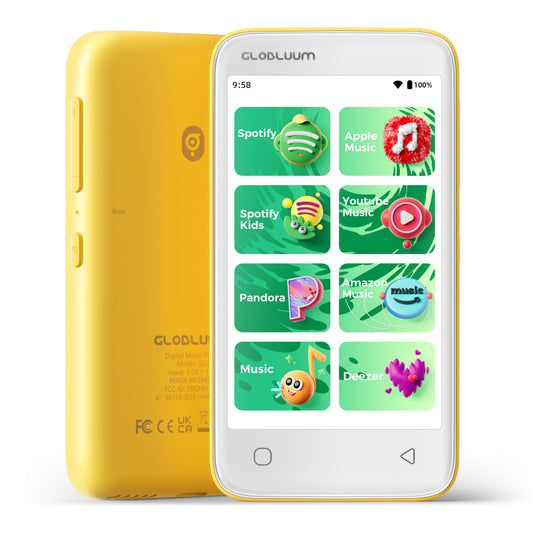
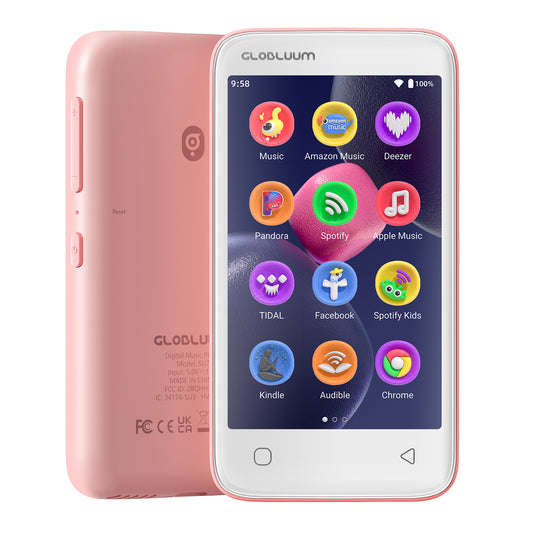
• Pre‑loaded with Spotify Kids, Spotify, Amazon Music, Apple Music, and YouTube Music. Just sign in and play – no setup, no hassle. Pure musical joy for kids.
🌙 Helps Kids Fall Asleep Easier
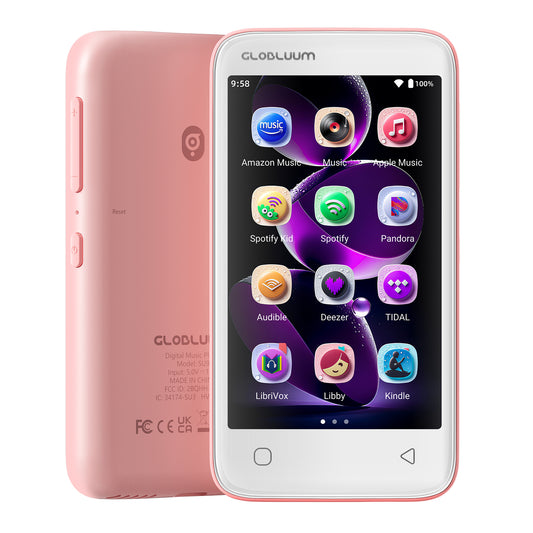
• Calming bedtime stories from Audible Kids, Libby, LibriVox, and Kindle. The sleep timer makes every night quiet and peaceful.
👆 Easy for Kids to Use
• Big 4" touchscreen with large, easy‑to‑tap icons. One tap to play. Kids can do it themselves – so you can help less.
🛡️ Light and Durable for Kids
• Only 3.46 oz – easy to hold and carry. Durable plastic shell plus a protective case included. Built for kids on the go.
⚡ More Listening, Less Waiting
• 16GB storage holds more playlists and audiobooks – kids stay engaged. 2GB RAM opens apps faster and switches smoothly.
🔋 Long‑Lasting Playtime
• 12nm chip consumes less power. 1750mAh battery keeps music going all day – perfect for outdoor fun, road trips, or quiet time at home.
📱 Stay Connected, Stay Happy
• Bluetooth 5.0 pairs fast with earbuds, speakers, and car audio. Stable sound, fewer dropouts, easy reconnect – happy listening at home, in the car, or on the go.
🎬 HD File Support – Clear 800×480 Display
• Accepts up to 1080p video and automatically fits our 800×480 screen. Works with MP4, AVI, MKV, and more. No format worries – just press play.
🔄 No‑Hassle Updates, Still Safe
• Google Play for updates only – kids can't install new apps. Apps keep working without extra steps. Parents spend less time fixing, more time listening.
✨ Perfect For
• Parents – kid‑friendly content with parental controls
• Commuters – offline music, audiobooks, and podcasts
• Audiophiles – lossless audio in a compact player
• Travelers – e‑books & video entertainment without Wi‑Fi
🛡️ Our Promise to You
• 30‑Day No‑Reason Returns – free return shipping & full refund
• 1‑Year Warranty – worry‑free protection (subject to local laws)
Share


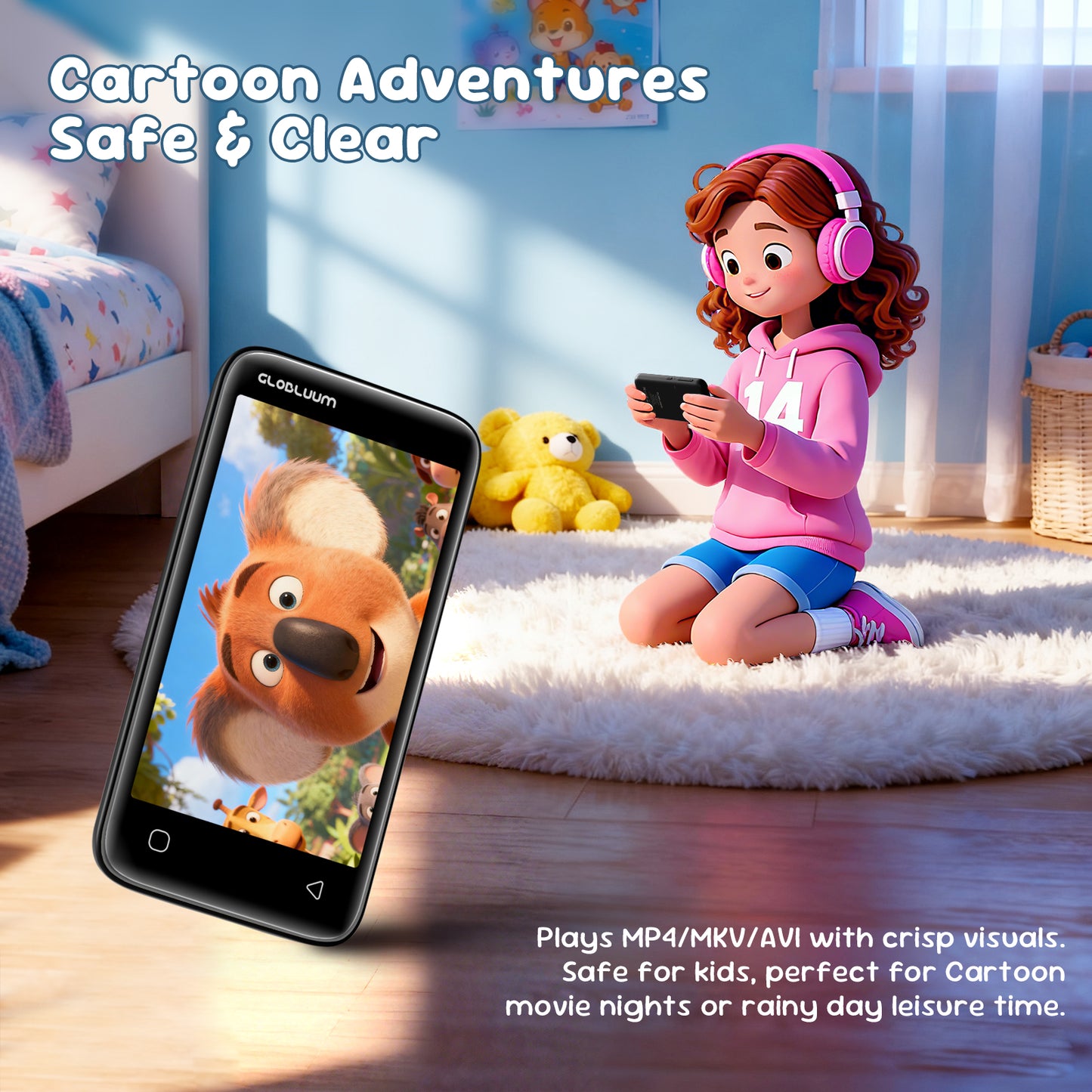
The Ultimate Safe Music Player for Kids – Listen, Learn, Sleep
Designed for worry‑free listening, this player runs a closed Android 14 with parental controls. Preloaded with Spotify Kids, Spotify, Amazon Music, Apple Music, YouTube Music, Pandora, Deezer, TIDAL, Audible, Libby, LibriVox, and Kindle. Kids enjoy songs, bedtime stories, audiobooks, and educational content at home, in the car, or on trips. Bluetooth 5.0, all‑day battery. Perfect for ages 3–12. Parents love the safe, durable, distraction‑free design.

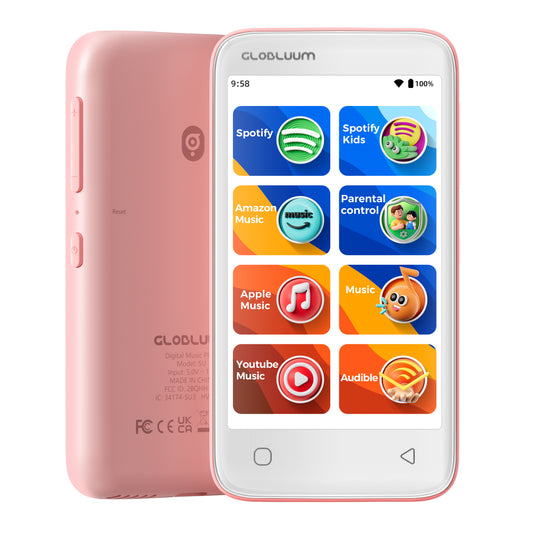
Parental Control – Safe Music, Your Way.
Parents can fully customize the player to create a safe, distraction‑free environment for their children. The system offers the following controls:
Password‑protected access – Set a 4‑ to 12‑digit PIN to lock settings and prevent children from bypassing restrictions.
App whitelist / blacklist – Explicitly allow only approved apps (e.g., Spotify Kids, Audible, Kindle) or block specific ones (e.g., browser, Google Play).
Lock factory reset – Require parental password to perform factory reset, ensuring your custom settings and restrictions cannot be erased.

Kid-Safe Closed System
The player runs Android 14 with a locked environment for children.
Google Play is set to Updates Only– kids cannot browse, search, or install new apps.
Pre-installed safe apps (Spotify Kids, Audible, Kindle, etc.) receive automatic updates, keeping them secure and up to date.
No new app installations are allowed from Play Store, APK files, or any external source.
This closed system gives parents peace of mind – your child enjoys music, stories, and learning in a safe, predictable digital space.

Bluetooth 5.0 – Always Ready, Always Connected
Instantly pair with wireless earbuds for quiet listening at home. Connect to a Bluetooth speaker for family dance parties. Link to car audio for road trip stories and songs. Bluetooth 5.0 ensures stable, dropout‑free connections – even when the device is in a backpack or pocket. Kids can move freely from room to room or outdoors without losing signal. Reconnection is automatic when devices are back in range. No complex setup, no constant re‑pairing. Just smooth, joyful listening anywhere life takes you.

Safe Music, Your Way
Parental Control secures safe music your way – designed for kids, trusted by parents. Block unwanted apps, set limits, and give your child a worry‑free listening experience.

One Tap to Happy Ears
With Spotify Kids, Apple Music, and Amazon Music, your child can play their favorite songs in a tap – no waiting, no fuss. Just pure musical joy.

Fuel Joy. Run Free.
Music and running together – fueling your child’s joyful growth. Every step, every beat, a little more laughter. Let the adventure begin.

A Story Away from Sleep
One tap, and a gentle story begins. Pre-loaded platforms, kind voices, and soft tales – all to wrap your child in sweet dreams, night after night.

Common Questions & Answers
Can it play local files without internet?
Yes. The player supports playing local files stored on the built‑in memory or microSD card. You can download or transfer your child’s favorite songs, bedtime stories, and audiobooks to the device. Even without Wi‑Fi or while traveling, kids can enjoy listening anytime – no internet needed.
Does it have a built‑in speaker? How’s the sound quality?
Yes, the player comes with a high‑quality built‑in speaker. The sound is clear and warm – perfect for nursery rhymes, bedtime stories, and audiobooks. Your child can enjoy listening freely in their room without needing headphones or external speakers. The volume is also carefully tuned to be gentle on young ears.
Can my child install new apps?
To keep kids safe, only approved apps are allowed:
Video: Netflix, Disney+, YouTube, YouTube Kids;
Audio control: Jabra, JBL, Bose, SONOS, soundcore;
Music: Radio Disney, Shazam;
Social: TikTok, Snapchat, WhatsApp;
Utilities: ChatGPT, Smart Control.
Is there a sleep timer?
Yes. The player includes a built‑in sleep timer. You can set a listening duration (e.g., 15, 30, or 60 minutes). When the time is up, playback stops automatically and the device goes into standby mode. Perfect for bedtime stories or gentle music – helps your child fall asleep peacefully while saving battery.
Does the player have parental controls to manage usage?
Yes. Our parental control system is built into Android 14 and offers several layers of protection:
- PIN‑protected settings – Prevents kids from accessing system settings or changing parental controls.
- App whitelist/blacklist – Parents can block specific apps (e.g., browser, Google Play) or allow only approved apps like Spotify Kids and Audible.
Does the device collect children’s data? Is privacy protected?
No. The player does not collect any personal data from children by default. All usage history and playlists remain stored locally on the device – never uploaded to our servers. We fully comply with children’s privacy regulations (such as COPPA). We do not track, analyze, or share your child’s activity. You can use it with complete peace of mind.
How to Transfer Files from Your Computer to Music Players (SU3 / SU5 / SU7 / SU9)
Preparation:
- Ensure your computer is running Windows 7 or later, macOS, or Linux.
- Use a high-quality USB-A to USB-C cable (data sync capable, not just charging).
- Make sure your SU series player (SU3/SU5/SU7/SU9) has sufficient battery level (above 20%) to avoid interruption.
Step-by-Step Guide:
1. Connect the device
Plug the USB-C end into your SU player and the USB-A end into your computer's USB port. For older desktops, use a rear USB port for stable power.
2. Unlock the player and select USB mode
On the player screen, swipe down from the top to open notification panel. Tap the USB notification and select "File Transfer" or "MTP (Media Transfer Protocol)". Do NOT choose "Charging only" or "USB tethering".
3. Verify connection on your computer
- Windows: Open File Explorer → "This PC". Look for a device named "SU3", "SU5", "SU7", or "SU9" under "Portable Devices". If not there, open Device Manager → expand "Portable Devices" or "Universal Serial Bus devices". A yellow exclamation mark indicates missing driver.
- macOS: Install Android File Transfer or OpenMTP first. After connection, launch the app; it should detect your SU player automatically.
- Linux: Most distributions will mount the SU player as an MTP device. Use Nautilus or mtp-detect.
4. If the device is not recognized
- Try a different USB cable (many cables are charge-only).
- Restart both the SU player and your computer.
- Update or reinstall the MTP driver:On Windows, right-click Start → Device Manager → right-click the unknown device → "Update driver" → "Search automatically for drivers".If that fails, download "Universal MTP Driver" from Microsoft or use the manufacturer's driver.
5. Transfer files
Once recognized as a drive or device:
- Double-click the SU device icon to open internal storage or microSD card (if inserted).
- Simply drag and drop music folders (MP3, FLAC, WAV, etc.) onto the desired folder (e.g., "Music").
- Do NOT disconnect while transfer is in progress.
6. Safely eject the device
On Windows, right-click the SU drive in "This PC" and select "Eject". On macOS, drag the mounted volume to Trash (which turns into Eject icon). Then unplug the cable.
Troubleshooting common issues:
- "Device not responding": Reboot both devices and try a different USB port.
- Transfer stops halfway: Check cable stability; avoid USB hubs.
- MTP driver failure: Manually download "MTP Portable Device" driver from Windows Update Catalog.
- On Linux, permission denied: Install mtp-tools and mtpfs, then use jmtpfs to mount.
Pro tip: For very large music libraries (e.g., 1TB), use a microSD card reader instead of USB MTP, as MTP can be slow for thousands of small files. Copy directly to the microSD card via an adapter.
How to Connect Bluetooth Headphones or Speakers to Players (SU3 / SU5 / SU7 / SU9)
Before you start:
- Make sure your Bluetooth headphone/speaker is fully charged and in pairing mode (usually indicated by a blinking LED). Refer to its manual for the specific button press (e.g., hold power button for 5 seconds).
- Keep the SU player and the Bluetooth device within 1 meter of each other during pairing.
- Disable Bluetooth on any other nearby phones or tablets to avoid interference.
Step-by-step pairing:
- Enable Bluetooth on the SU player
Go to Settings → Bluetooth → Toggle Bluetooth ON. The player will automatically scan for available devices. - Put your Bluetooth device into pairing mode
Most devices enter pairing mode by holding the power/multi-function button until the LED flashes red and blue alternately. Consult the device manual if unsure. - Select your device from the list
On the SU player, under "Available devices", you should see the name of your headphone/speaker. Tap on it. A confirmation sound or "Connected" status will appear. - Test the connection
Play a song to verify audio is routed to the Bluetooth device. Adjust volume on both the player and the headphone/speaker.
If your device is not found in the list:
- Step 1: Turn Bluetooth OFF on the SU player, then turn it ON again. This triggers a fresh scan. Wait 10–15 seconds.
- Step 2: Ensure your Bluetooth device is still in pairing mode (some devices exit pairing mode after 2 minutes).
- Step 3: Restart both the SU player and the Bluetooth device (power cycle).
- Step 4: Clear previous pairings on the SU player: go to Bluetooth → Paired devices → tap the gear icon next to any old device → "Forget". Then re-scan.
- Step 5: If still not found, reset Bluetooth settings on the SU player (without factory reset):
Go to Settings → System → Reset options → Reset Wi-Fi, mobile & Bluetooth (this does not erase music files). - Step 6 (last resort): Factory reset the SU player.
Warning: This will erase all settings, paired devices, and possibly internal storage data. Backup first.
Go to Settings → System → Reset → Factory data reset.
Advanced troubleshooting for technical users:
- Codec compatibility: SU series supports SBC, AAC. If your headphones support aptX HD or LDAC, they will fallback to a compatible codec. No additional driver needed.
- Interference: 2.4 GHz Wi-Fi can interfere with Bluetooth. Temporarily switch Wi-Fi to 5 GHz or turn it off during pairing.
- Multiple connections: SU players do not support simultaneous connection to two Bluetooth audio devices. If you need to switch, disconnect the current one first.
- Range issues: After pairing, maximum range is about 10 meters (33 feet) line-of-sight. Walls reduce range.
- Firmware update: If Bluetooth is unstable, check the manufacturer's website for a firmware update for your SU player.
Pro tip: For best audio quality, disable Bluetooth absolute volume (if available in Developer Options) to prevent compression. Also, avoid using Bluetooth while the player is connected via USB to a computer, as that can cause audio glitches.
How to Ensure Successful WiFi Connection on Players (SU3 / SU5 / SU7 / SU9)
Before you start:
- Make sure your SU player's system time and date are correct (incorrect time can cause authentication failures).
- Keep the player within 2–5 meters of your WiFi router during initial setup.
- Know your WiFi password (case-sensitive).
Supported WiFi standards:
- SU series supports dual-band WiFi: 2.4 GHz (802.11 b/g/n) and 5 GHz (802.11 a/n/ac).
- Security modes: WEP, WPA, WPA2 (Personal), WPA3 (if supported by firmware; check your device).
- Both hidden SSID and broadcast SSID are supported.
Step-by-step connection:
- Go to Settings → Network & Internet → WiFi.
- Toggle WiFi ON and wait for the scan to complete (5–10 seconds).
- Select your network from the list. Networks may show frequency bands (2.4G or 5G) if available.
- Enter the password carefully (use "Show password" if needed).
- Tap "Connect". Wait for the status to change to "Connected".
Critical checks for successful connection:
- Not outdoor/public WiFi with captive portal – Public hotspots often require a web login. SU players cannot handle captive portals.
- No MAC address filtering (unless whitelisted) – If your router has MAC filtering enabled, add the SU player's MAC address to the allow list. Find MAC address in Settings → About → Status.
- DHCP enabled – The player must obtain an IP address automatically via DHCP. Static IP is possible via advanced settings (Modify network → Advanced → Static IP).
- Compatible band – 2.4 GHz is recommended for longer range; 5 GHz offers faster speed but shorter range. Make sure your router broadcasts the band you intend to use.
- Channel selection – For 5 GHz, avoid DFS channels (52–144) if your player has poor detection – use non-DFS channels like 36–48 or 149–165.
Troubleshooting when connection fails:
Network not visible?
- Ensure the router's SSID is not hidden (hidden networks are supported, but you must manually add them via "Add network").
- If using 5 GHz, move the player closer to the router (5 GHz has shorter range).
- Reboot the router and the SU player.
"Authentication error" (wrong password)?
- Double-check password case sensitivity.
- Try removing special characters from the password temporarily (some devices have issues with $, &, #).
"Failed to obtain IP address"?
- Log into your router and ensure DHCP server is enabled.
- Increase the DHCP address pool or reduce lease time.
- Reboot both devices.
Connected but no internet?
- Check if the router requires a captive portal login. SU players cannot use such networks.
- Verify that your internet connection is active on other devices.
Connection drops frequently?
- For 2.4 GHz: interference from microwaves, cordless phones, or neighboring routers. Change channel to 1, 6, or 11.
- For 5 GHz: DFS channels can cause drops when radar signals are detected. Switch to non-DFS channels (e.g., 36, 40, 44, 48, 149, 153, 157, 161).
- Update the SU player's firmware.
Advanced tips for technical users:
- Preferred band selection: In Developer Options (enable by tapping Build Number 7 times), you can set "WiFi Frequency Band" to 2.4 GHz only, 5 GHz only, or auto. This helps when both bands share the same SSID.
- Static IP: Modify network → Advanced → Static IP (useful if DHCP is unreliable).
- WiFi power saving: In Developer Options, disable "WiFi power saving" for more stable streaming (slightly higher battery drain).
- Check router logs: Look for "deauth", "association timeout", or "DHCP failure" entries.
Pro tip: If you travel with your SU player, create a mobile hotspot from your phone (5 GHz capable phones will provide 5 GHz hotspot). Test connection there to isolate player issues from router issues.
How to Securely Insert and Use an SD Card in Players (SU3 / SU5 / SU7 / SU9)
Supported SD Card Specifications:
- Type: microSD, microSDHC, microSDXC
- Maximum capacity: Up to 1TB (for all SU series models)
- File system: FAT32 or exFAT (NTFS is not supported). Cards above 32GB are typically pre-formatted as exFAT.
Step-by-Step Insertion:
- Locate the SD card slot on the side or bottom edge of your SU player. There may be a rubber dust cover.
- Hold the microSD card with the gold contacts oriented as shown in the user manual illustration.
- Gently push the card into the slot until you feel slight resistance.
- Push further until you hear a distinct "click" – this means the spring-loaded mechanism has locked the card in place. The card should sit flush with the device edge (not protruding).
- Verify detection: Go to Settings → Storage → Look for "SD card" or "External storage". The total capacity (up to 1TB) should appear.
If You Don't Hear a Click:
- The card may not be pushed deep enough. Use a fingernail or a small non-metallic tool (e.g., a wooden toothpick, plastic spudger, or the edge of a credit card) to press the card slightly further.
- Avoid using sharp metal objects like needles, as they can damage the slot pins.
- If the card still won't click, remove it and check for debris inside the slot. Use compressed air gently if needed.
How to Safely Remove the SD Card:
- Unmount the card first to prevent data corruption:
Go to Settings → Storage → Tap "Unmount SD card" or "Eject". Wait for confirmation. - Push the card inward until you hear a "click" – the card will pop out partially.
- Pull the card out gently with your fingers.
Common Troubleshooting (No Table):
- Card not detected
Re-insert the card and ensure you hear the click. Restart the player. Test the card on a computer to confirm it works. - "Card corrupted" error
Insert the card into a computer, back up your data, then format it as FAT32 or exFAT. - Card detected but files do not appear
Ensure music files are in supported formats (MP3, FLAC, WAV, AAC, OGG, etc.). Avoid special characters in file names. - Playback stutters or skips
The card may be too slow. Use a UHS-I Class 10 or A1 rated card for smooth playback of high-bitrate files. - Card sticks out after insertion
It is not fully seated. Push again until flush with the edge. If it still sticks, the slot may be damaged.
Pro Tip: Before using a new SD card, format it on a computer as exFAT with the default allocation unit size. Then create a folder named "Music" at the root. This helps ensure optimal compatibility and faster file access.
More Favorites Await
-
SU3 Safe Kids MP3 Player with Parental Controls. Supports Spotify Kids, Apple Music, Audible, Kindle. Great Gift for Kids.
4.65 / 5.0
(227) 227 total reviews
Regular price $79.99 USDRegular price -
SU5 Digital Music Player for Kids, 4" Full Touch Screen MP4 with Spotify, Spotify Kids, Google Play, Audible and Speaker.
4.7 / 5.0
(259) 259 total reviews
Regular price $69.99 USDRegular price -
SU9 Android Streaming Music Player with Bluetooth & WiFi, 4" Touchscreen MP3/MP4 Player
4.77 / 5.0
(240) 240 total reviews
Regular price $89.99 USDRegular price -
SU7 Digital Audio player with Bluetooth & Wi-Fi, mp3 Music player with Spotify, Pandora, Tidal, Deezer, Audible, Kindle and Speaker.
4.73 / 5.0
(376) 376 total reviews
Regular price $79.99 USDRegular price




- 5 stars: 181 (70%)
- 4 stars: 78 (30%)
- 3 stars: 0 (0%)
- 2 stars: 0 (0%)
- 1 star: 0 (0%)
I found this MP3 player to be a nice option for young children. The screen quality is okay and good enough as a kid's device. We mainly used it to play songs and Audible books, and it worked perfectly for both. The parental controls are a useful feature, giving better control over what content is accessible. The battery life is very good for this kind of use, so it doesn’t need frequent charging. Overall, a simple and reliable audio device for kids’ entertainment.
Ce baladeur numérique est une excellente surprise pour les parents qui, comme moi, souhaitent éloigner leurs enfants des écrans de smartphones tout en leur donnant accès à leurs contenus préférés. En réalité, la compatibilité directe avec Spotify et Audible change complètement la donne : fini la corvée de devoir télécharger des fichiers MP3 un par un sur l'ordinateur pour les transférer par câble. Grâce aux connexions WiFi et Bluetooth, l'enfant peut synchroniser ses playlists et écouter ses histoires ou ses musiques préférées, que ce soit au haut-parleur ou avec un casque sans fil, offrant une expérience moderne et fluide.Le véritable point fort de l'appareil réside dans son système de contrôle parental. L'interface est entièrement sécurisée, ce qui permet de brider l'accès aux applications et d'éviter que l'enfant ne navigue sur Internet ou ne tombe sur des contenus inappropriés. Sa capacité de 16 Go est largement suffisante pour stocker des dizaines d'heures de livres audio et de chansons en mode hors ligne, ce qui s'avère idéal pour les longs trajets en voiture ou les vacances. Enfin, son design compact couleur "Orange Cosmique" est particulièrement réussi : il est à la fois attrayant pour les plus jeunes et conçu dans un plastique robuste capable de résister aux chutes du quotidien.Un petit bémol non bloquant : La configuration initiale de l'appareil et l'appairage des comptes de streaming (Spotify/Audible) via le WiFi demandent un peu de patience et l'intervention obligatoire d'un adulte. Une fois cette étape passée, l'utilisation par l'enfant est un jeu d'enfant, c'est le cas de le dire.En conclusion, ce lecteur est l'outil parfait pour développer l'imaginaire et l'autonomie des enfants à travers l'audio, sans les dérives des écrans classiques de type smartphone. Je le recommande vivement aussi pour son étanchéité numérique et sa polyvalence technique !
Je m’attendais à un petit gadget plutôt qu’à un véritable appareil multimédia performant. Eh bien, quelle bonne surprise ! Ce lecteur MP3 est bluffant par sa qualité, sa fluidité et ses fonctionnalités. Il est incroyable et je suis ravie de cette trouvaille.Même si le produit semble être commercialisé principalement pour les plus jeunes, il convient également aux adultes. Pour ma part, je cherchais justement une solution pour me détacher un peu de mon téléphone sans renoncer à ma musique, mes livres audio ou mes podcasts. Mission accomplie !L'appareil est livré avec les applications essentielles déjà installées : Spotify, Audible, Amazon Music et d'autres. Il suffit de le connecter au Wi-Fi, de renseigner ses identifiants et tout fonctionne immédiatement. Quel plaisir de pouvoir profiter de ses contenus préférés sans être interrompu par les notifications et sollicitations permanentes. Bye bye le stress, bonjour la décompression ! 😌🎧Côté utilisation, c'est un sans-faute. L'interface est simple et intuitive, l'écran tactile est agréable, fluide et réactif, la connexion est rapide et stable. L'appareil est léger, joli, robuste et inspire confiance dès la prise en main. L'autonomie est également excellente et permet de longues heures d'écoute sans se soucier de la recharge.J'apprécie aussi l'approche sécurisée du produit, ainsi que la clarté des informations techniques fournies. Tout correspond à la description et les performances sont réellement au rendez-vous.À ce tarif, on obtient un véritable lecteur multimédia moderne dont certaines prestations n'ont pas à rougir face à des appareils beaucoup plus coûteux. Bien sûr, ce n'est pas un produit Apple, mais l'expérience est étonnamment qualitative pour un prix nettement plus accessible.Bref, une très belle découverte que je valide totalement. Je recommande sans hésiter !
Good idea for younger kids to give them music and audiobooks without unfettered access to everything a phone or tablet exposes them to. The simplified setup and parental controls make it feel much more child-focused, and the touchscreen is easy enough for kids to navigate on their own, but the tradeoff for that sort of control is that it feels clunky sometimes. Nice having Spotify Kids and audiobook apps ready to go without extra setup, and the lightweight design makes it easy to throw into a bag for travel or quiet time. Battery life also seems decent for a screen device.
i was hesitant to get my child a smartphone but wanted them to have a way to listen to their audiobooks and music without me having to hand over my own phone. this player is the perfect middle ground. the "walled garden" approach is exactly what i needed because i was able to block everything except for the apps i wanted them to use, so it is a huge relief not to worry about them wandering onto the web. it was very straightforward to set up, and once i signed into the pre-installed apps and locked down the settings with a pin, it was ready for my child to use independently. the size is perfect for smaller hands and the included protective case has already survived a few drops. since we have a massive library of audiobooks, i just popped in a microsd card and we haven’t had to worry about running out of space at all. a quick tip for parents: make sure you write down the pin you choose because once the restrictions are turned on, the device is very secure, and you don’t want to be locked out if you forget it. overall, this has made car rides and bedtime so much more peaceful, and it feels like a "big kid" device while giving me complete peace of mind. i highly recommend this for any parent looking for a safe and limited music solution.
C’est quasiment un sans-faute pour ce petit lecteur MP3 destiné principalement aux enfants. On retrouve ici un appareil basé sur Android, mais avec un système verrouillé qui limite volontairement les applications pouvant être installées. Cela permet une utilisation beaucoup plus sécurisée et orientée musique, livres audio et contenus adaptés aux plus jeunes.Les principales applications sont déjà préinstallées, notamment Spotify Kids, Spotify, Amazon Music, Apple Music et YouTube Music. Pour les histoires et livres audio, on retrouve également Audible Kids, Libby, LibriVox et Kindle. L’appareil est donc prêt à être utilisé immédiatement sans configuration compliquée.J’ai été assez surpris de voir ChatGPT proposé dans les applications disponibles, ce qui m’a semblé étonnant sur un appareil destiné aux enfants. D’ailleurs, l’application ne fonctionne pas très bien en mode vocal, probablement en raison de la puissance limitée de l’appareil.L’écran tactile de 4 pouces fonctionne très bien, avec une navigation simple et intuitive. Les enfants prennent rapidement l’appareil en main et le considèrent presque comme un vrai smartphone. La finition générale est bonne et l’étui fourni est un vrai plus pour protéger l’ensemble au quotidien.L’appareil fonctionne principalement en Wi-Fi puisqu’il ne dispose pas d’emplacement pour carte SIM. En revanche, il est tout à fait possible d’y transférer des musiques ou vidéos directement depuis un ordinateur. Il prend en charge plusieurs formats vidéo et audio, avec une lecture vidéo correcte pour ce type d’écran.Le contrôle parental est assez basique puisqu’il repose principalement sur un code permettant d’accéder aux paramètres. J’aurais préféré une vraie application de gestion parentale permettant de contrôler les temps d’utilisation, les plages horaires ou les applications autorisées. Ici, le fabricant décide lui-même quelles applications peuvent être installées ou non.C’est d’ailleurs le principal défaut que je lui trouve. Par exemple, impossible d’installer Plex ou certains petits jeux éducatifs pourtant parfaitement adaptés aux enfants et que l’appareil pourrait faire tourner sans problème. Même si le Google Play est visible, les applications non autorisées affichent simplement une erreur à l’installation.Autre point que je regrette, l’application YouTube Music intègre désormais de plus en plus la vidéo. C’est un choix propre à YouTube, mais il faut le savoir : sur cet appareil, il n’est pas possible de verrouiller cette fonctionnalité pour ne conserver que l’écoute musicale. Pour un produit destiné aux enfants, c’est un détail important à prendre en compte si l’on souhaite limiter au maximum l’usage de l’écran.Autre point à noter, certaines traductions du système sont incomplètes et quelques menus ou applications restent partiellement en anglais. On sent aussi qu’il s’agit d’une version Android modifiée qui ne semble pas destinée à recevoir de grosses mises à jour dans le temps.La batterie tient correctement pour une utilisation musicale classique. En revanche, la lecture vidéo consomme évidemment beaucoup plus. J’ai apprécié la fonction d’extinction automatique après 30 minutes d’inactivité, qui évite de retrouver l’appareil totalement déchargé.Le Bluetooth fonctionne parfaitement avec des écouteurs ou un casque sans fil, ce qui est un vrai plus pour les trajets ou les moments calmes.Test réalisé avec ma fille de 8 ans, avec une prise en main instantanée. Elle a tout de suite compris le fonctionnement et a adoré réaliser des enregistrements audio. Elle m’a aussi demandé comment faire des photos, ce qui montre qu’un petit objectif aurait été un vrai plus.Au final, c’est un très bon petit lecteur multimédia pour enfants, sécurisé et simple à utiliser. J’aurais simplement aimé un système plus ouvert côté contrôle parental afin de laisser les parents choisir eux-mêmes les applications autorisées et les fonctionnalités à bloquer. Malgré cela, le produit reste bien pensé et parfaitement adapté aux enfants qui aiment écouter de la musique ou des histoires de manière autonome.
J’ai testé cet objet dans le cadre du programme de testeurs Amazon VINE. Mon avis est donc impartial et objectif.L’idée de ce lecteur audio pour enfants nous a séduites par son positionnement volontairement différent d’un smartphone classique. Ma nièce de bientôt 3 ans l’a testé avec sa mère, dans une logique d’écoute de musique et d’histoires, sans exposition à du divertissement visuel.CONTEXTECe lecteur propose une approche intéressante : ici, on reste sur un appareil centré sur l’audio. Le principe est justement qu’il ne soit pas possible d’ajouter librement des applications ni de transformer l’objet en support de vidéos ou de jeux sur écran. On retrouve la compatibilité avec des services comme Spotify ou Audible, mais dans un cadre plus encadré. La configuration et certains réglages passent par une application de pilotage destinée aux parents, ce qui permet d’encadrer l’usage et de programmer notamment un minuteur.POINTS POSITIFSL’appareil est livré avec une coque transparente épaisse qui protège bien le boîtier, ce qui est appréciable pour une utilisation enfantine. Son format est compact, sans être minuscule ; il tient bien dans de petites mains. L’allumage et l’utilisation générale sont plutôt simples, l’autonomie nous a paru satisfaisante et le fonctionnement global est bon. Un point pratique supplémentaire : après un certain temps sans utilisation, l’appareil se met automatiquement en veille, ce qui participe à préserver la batterie. Ma nièce est encore trop jeune pour une utilisation autonome complète, mais elle a pu interagir avec les boutons et participer à l’expérience accompagnée de sa mère. Le concept même du produit est, à mon sens, son principal atout : proposer un accès à des contenus audio sans basculer vers un usage d’écran plus stimulant visuellement.MES RÉSERVESLe tactile présente tout de même un léger temps de réponse, et le lancement des applications manque parfois un peu de rapidité. Rien de bloquant dans l’usage, mais cela se remarque. Pour un très jeune enfant, l’accompagnement d’un adulte reste également nécessaire pour la configuration et la navigation.CONCLUSIONCe lecteur remplit bien sa fonction : offrir un accès encadré à des contenus audio pour enfants, dans un format pensé pour limiter l’omniprésence des écrans. Malgré une réactivité perfectible, il fait largement le travail au regard de son positionnement tarifaire.J’espère que mon avis vous aura été utile.
This MP3 player turned out to be much better than I expected. The audio quality is excellent, and connecting to Bluetooth devices is quick and hassle-free. I mainly use it for music streaming and audiobooks, and it handles apps like Spotify, Audible, and Amazon Music smoothly.The WiFi feature is really convenient, and the touchscreen responds well without lag. I also appreciate the compact size and pretty lavender color , it looks even nicer in person. Battery life lasts a long time, and the large storage capacity gives plenty of room for songs and downloads.Overall, it’s a fantastic option if you want a portable music device without relying on your phone. Great for everyday listening, travel, or even for kids.
Ce MP3 est sympa dans l’ensemble mais il faut bien comprendre qu’il s’agit plus d’une petite tablette limitée qu’un simple lecteur MP3.Certaines fonctions sont pratiques, d’autres un peu limitées.Le design est joli et adapté aux enfants, mais l’interface paraît parfois un peu datée.Le haut-parleur intégré manque aussi un peu de puissance.En revanche, pour écouter de la musique, des podcasts ou des histoires en toute simplicité, cela fait le travail correctement
Ich habe diesen MP3-Player bestellt, weil meine Tochter kein Handy mit ins Schullandheim nehmen darf. Der Player hat die üblichen Programme (wie Spotify) vorinstalliert, man muss sich also nur anmelden und schon kann es losgehen. Klanglich ist das kleine Ding wirklich nicht schlecht. Man darf jetzt keine Höchstleistungen für audiophile Feinschmecker erwarten, aber es erfüllt seinen Zweck, ob nun über den integrierten Lautsprecher oder per Kopfhörer. Insgesamt besonders für Kinder ein tolles Produkt, ich bin bisher sehr zufrieden.
Solange die Kinder nicht zu alt sind, dürfte das Gerät zufriedenstellend sein. Musik oder Hörspiele gehen ganz gut und die Kleine hatte die Bedienung schneller kapiert als ich. Das Angebot ist recht rudimentär aber absolut ausreichend. Spotify und so klappen natürlich nur, solange Wlan erreichbar ist, das Teil ist kein verkapptes Smartphone und beinhaltet auch keine SIM oder sowas. Persönlich finde ich das Gerät viel zu wuchtig, für das was es bietet, aber für Kinder (oft ziemlich grobmotorisch) und vermutlich auch Senioren dürfte das eher von Vorteil sein. Stabil ist es jedenfalls definitiv. Es hat bereits 2 Wutanfall-initiierte Orbitalflüge (einmal quer durch den Garten, ein anderes Mal durch die Glasscheibe einer Deko-Sturmlaterne) völlig unbeschädigt überstanden. Das Bedienen mit einem Schraubenzieher (weiß Gott wie sie den in ihr Zimmer geschmuggelt hat) hinterlässt hingegen Kratzer, die man zwar etwas rauspolieren kann, aber nicht ganz.... das eigentlich Erwähnenswerte ist, dass das Gerät nach wie vor einwandfrei bedienbar ist.Rechnet man die Stabilität ein und sucht etwas für die eher jüngeren oder eher älteren Menschen, liegt man mit dem Ding ganz gut. Wenns nicht so klobig oder etwas günstiger wäre, müsste ich auch volle 5 Sterne geben...
While this is a kids MP3 player, I picked this up to turn my old 90s stereo system (receiver, cassette deck, turntable) into a modern streaming setup. I connected a Bluetooth receiver to the AUX port, then paired this player to it. It works great as a easy to use digital audio interface.The player itself is solid for its intended purpose. It comes with many popular apps pre-installed (Spotify, YouTube music, Amazon Music, etc.) and has a simple, kid-friendly interface that’s also easy for adults to use. Sound quality is excellent when routed through a good speaker system or headphones as expected from any digital source. The built-in speaker leaves a lot to be desired but is passable at low volumes. This is pretty normal for any portable device like this though as they only really shine with headphones or other Bluetooth connections such as speakers, sound systems or even a cars entertainment system.Battery life is decent and similar to a phone at around 8+ hours of constant use. It has 16GB internal storage and microSD expansion, and the included preinstalled rubber case and screen protector is a nice touch for durability. Bluetooth 5.0 connects reliably.Pros:• Easy to use interface• Good sound quality when connected to better speakers/headphones• Bluetooth 5.0• 16GB storage + microSD slot• Comes with protective case and screen protector preinstalled• Parental controls to lock things down• Processor is not super fast but fast enough for what this device does and comparable to an entry level low end smartphoneCons:• App installation is very hit-or-miss (closed system with an unknown approved list). Some kid-friendly apps work, others don’t. No way to customize the list.• No browser or advanced apps• FM radio requires wired earbuds (uses the wire as antenna)Overall, this is a solid little MP3 player for kids or as a budget streaming bridge for older audio equipment. It does exactly what I needed it for and has been working reliably. The parental controls are strong, which is great for actual kid use.I’m happy with it but I would be a little happier if I could adjust the approved apps list as some basic apps would not install such as VLC media player which is my go to for most things audio and video as it supports all formats. Luckily there are approved alternatives I have installed but while I applaud the locked down nature to protect kids the adult should have some control over the approved apps list via the parental controls.
This mp3 player is perfect for young kids. This runs on Android. It does not have a browser installed on it, making it difficult for children to install something that they shouldn’t use. It comes preloaded with the apps they’ll have access to, though you could also add to this, if desired. The touchscreen is easy to navigate. You do need to log in to the apps to properly set up the accounts to use. The Bluetooth connects easily and is perfect for loading or sending files. The battery lasts quite a while. It has 16GB of storage, which is plenty. There is a parental control option that you can use involving a passcode. I love that this even includes FM radio and voice recording. There is a plug for headphones. This does come with some ear buds, but at least you have options as this even has a built-in speaker. This is perfect for travel!
Klasse Set. Vielleicht an sich ein bisschen oldschool, aber ich finde es gut, wenn man Kindern ermöglichen will, Musik oder Hörspiele zu hören, ohne, dass sie in social Media anfangen rum zu Cruise.Das Set hat alles an Bord, was man braucht.Dazu ist es sehr wertig gemacht.Gute Qualität.Ich finde übrigens auch die Farbe hübsch.
This feels like an old-school MP3 player, but with surprisingly modern functionality. Having Spotify, Audible, Bluetooth, Wi-Fi, and even apps like Libby on a dedicated device is actually pretty convenient — great for workouts, travel, or for kids who don’t need a full phone.The touchscreen is responsive enough, storage is generous, and battery life has been decent so far. It’s definitely not as fast as a smartphone, and the interface can feel a bit clunky at times, but for a distraction-free music player, it does the job well.
This is a really well thought out little music player for kids and feels much safer and more focused than just handing over a phone.The simplified setup works well - no browser, no random apps, just music, audiobooks and kid-friendly content. Having Spotify Kids, Audible and the other apps already installed makes it very easy to get started.The interface is simple enough for children to use on their own, with large icons and straightforward navigation, which is a big plus.Build quality is also good for a kids’ device. It’s lightweight, comes with a protective case, and feels durable enough to survive being carried around in bags or used on trips.Battery life seems decent too and it’s great for travel or quiet time at home.My only real criticism is the storage. 16GB feels quite limited nowadays, even for a children’s device, especially once downloads and audiobooks start adding up. It’s workable, but I do think they could have been more generous there.
I’m really happy with this MP3 player. I ordered it for my 6 year old who isn't allowed screens but she loves her music. This allows her to connect easily to kids Spotify and also listen to audio books through it. It’s well-made, easy to navigate, and the sound quality is surprisingly good (however she preferred connecting her own headphones). She loves using it every day, it’s simple enough for her to handle on her own after showing her how a couple of times.I had to check the parental controls but I like that she cannot access browsing and I can control what apps are available to her. The battery life also is good, she charges it every few days. Overall, a decent product that feels durable and great value for money.
I bought this MP3 player for kids mainly for the parental controls and offline listening, and overall it has worked well for our needs. The setup was fairly straightforward, and once connected to WiFi, it was easy to manage apps and content.The 16GB storage is enough for a decent amount of downloads, and the support for Spotify and Audible is a nice bonus, especially for audiobooks and music on the go. Bluetooth connectivity also works reliably with headphones, which makes it more flexible for travel or quiet time.The parental control features are the main reason I chose it, and they give a good level of reassurance in terms of what can be accessed. It feels like a safer alternative to giving a child a full smartphone.The purple design is also quite appealing and kid-friendly without being too flashy. Battery life has been reasonable for daily use, though it does depend on how heavily it’s being used with streaming versus offline playback.Overall, it’s a practical and fairly well-rounded device for kids, with a good balance of entertainment options and parental oversight.
LE BALADEUR MP3 "SUPER-KID AUDIO"Testeur : Une maman mélomane devenue traductrice assermentée par nécessité.Sujet : Lecteur MP3 pour enfants (Modèle : "Le DJ de la Récré").1. PERFORMANCE AUDIO : UN CONCERT DANS LE BERCEAUCet appareil est génial. Il tient toutes ses promesses : le son est clair, l'interface est adaptée aux enfants et la capacité de stockage permet de sauvegarder l'intégrale des comptines de France et de Navarre. C'est robuste, mignon, et ça fait briller les yeux des petits.2. LE CHOC DES LANGUES : DO YOU SPEAK MP3 ?Le seul vrai bémol, c'est la notice. Elle est longue, technique, et rédigée intégralement en anglais. Pour un produit destiné au marché français, c'est un choix pour le moins audacieux (ou un oubli de traduction monumental).• J'ai acheté un lecteur de musique, j'ai reçu un kit de préparation au TOEIC. J'ai passé ma soirée à essayer de comprendre la différence entre "Shuffle Mode" et "Loop All" en consultant mon dictionnaire franco-anglais. À ce rythme-là, mon fils saura expliquer la "théorie de la compression des fichiers audio" en anglais avant même de savoir lacer ses chaussures. Si vous cherchez un traducteur pour le chapitre 4 sur les égaliseurs, je suis désormais disponible à l'heure !3. QUALITÉ ET DESIGN : À L'ÉPREUVE DES BAMBINSHeureusement, une fois la barrière de la langue franchie, l'objet est un pur bonheur. Le matériau est résistant, comme un vrai smartphone (testé contre un lancer de doudou), les couleurs sont vives et l'autonomie est très correcte. C'est un appareil qui semble avoir été conçu pour durer, même entre les mains de petits explorateurs peu délicats.CONCLUSIONUn excellent produit techniquement parlant. Il perd quelques points sur l'expérience utilisateur à cause de ce manuel "so British", mais une fois configuré, c'est un plaisir total. Prévoyez juste un café et une application de traduction pour l'installation initiale !