


4.73 / 5.0
(376) 376 total reviews
Globluum
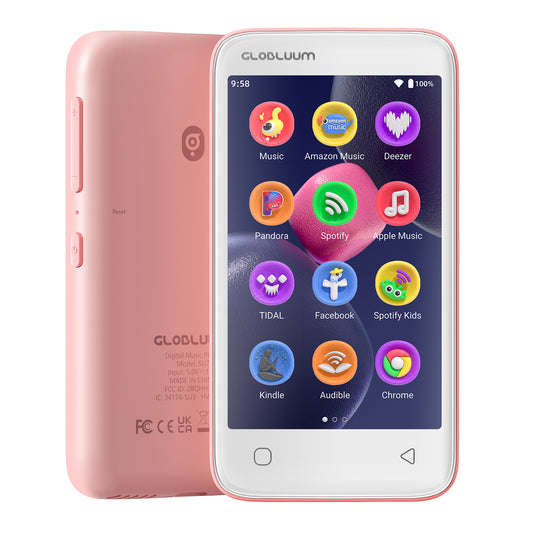
SU7 Digital Audio player with Bluetooth & Wi-Fi, mp3 Music player with Spotify, Pandora, Tidal, Deezer, Audible, Kindle and Speaker.
SU7 Digital Audio player with Bluetooth & Wi-Fi, mp3 Music player with Spotify, Pandora, Tidal, Deezer, Audible, Kindle and Speaker.
Couldn't load pickup availability
What's included
What's included
Music Player x1
Protective Case x1
Type-C Charging Cable x1
3.5mm Wired Earphones x1
User Manual x1
Buy more, save more
Buy more, save more
• Buy 3–5 pcs: Discount 1% OFF
• Buy 6–8 pcs: Discount 3% OFF
• Buy 9–11 pcs: Discount 5% OFF
• Buy 12–15 pcs: Discount 7% OFF
• Larger qty: contact us globluum@outlook.com
🎵 No Setup, Just Play
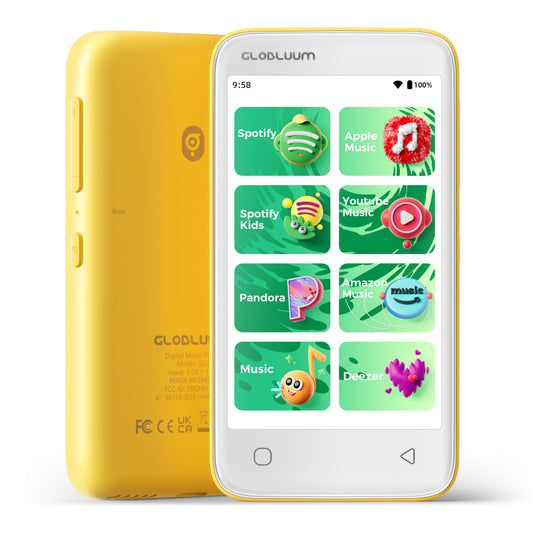
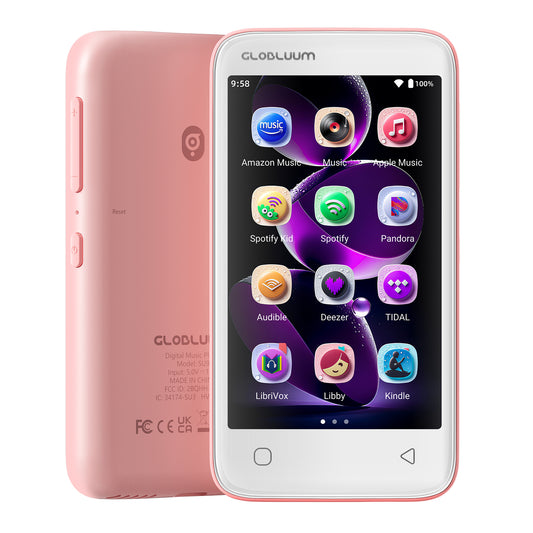
• Preloaded with Spotify, Spotify Kids, Amazon Music, Pandora, Deezer, TIDAL, and YouTube Music. Enjoy your favorite songs, audiobooks, and podcasts right after power‑on – zero setup.
🎧 Hear Every Detail, Feel Every Note
• HiBy Music preloaded for lossless playback. Customizable sound modes adapt to your style – pure, uninterrupted audio keeps you immersed in the music you love.
📚 Open Stories, Dive In
• Audible, Libby, and LibriVox preloaded. Enjoy rich sound, free library books, and classic tales anytime – an easy, immersive storytelling experience.
⚙️ Clearer Sound, Smoother Play
• 12nm CPU powers stable performance. Hardware‑level FLAC/APE decoding reveals richer details in every track.
🔄 Stay Synced, Play Seamless
• Android 14 with Google Play keeps apps updated automatically. Your playlists, favorites, and subscriptions follow you across phone, tablet, and player.
🎬 Press Play, Watch Smooth
• MX Player preinstalled for MKV, AVI, MP4, and MOV. Adaptive rendering keeps playback stable in dark or bright scenes. Subtitles auto‑load for effortless viewing.
📖 Books Anytime, Anywhere
• Kindle and Moon+ Reader Pro preloaded for online and offline reading. Enjoy EPUB, PDF, MOBI, and TXT with seamless sync across all your devices.
📡 Stay Connected, Stream Smooth
• Bluetooth 5.0 and dual‑band Wi‑Fi cut interference for stable headphones and speakers. Enjoy faster downloads and seamless streaming wherever you go.
💾 96GB Storage, Smooth Performance
• 96GB total (32GB built‑in + 64GB microSD card). 3GB RAM ensures smooth app use and fast response for songs, stories, and videos.
🛡️ Light to Carry, Tough to Last
• Weighs only 98g for easy portability. Comes with a protective case that shields against drops and bumps – reliable use anywhere.
✨ Perfect For
• Parents – kid‑friendly content with parental controls
• Commuters – offline music, audiobooks, and podcasts
• Audiophiles – lossless audio in a compact player
• Travelers – e‑books & video entertainment without Wi‑Fi
🛡️ Our Promise to You
• 30‑Day No‑Reason Returns – free return shipping & full refund
• 1‑Year Warranty – worry‑free protection (subject to local laws)
Share


Designed and Built with Craftsmanship to Create a Music Player.
Crafted with meticulous craftsmanship, our high-quality music player accurately reproduces every subtle detail of music, From deep, resonant bass to crisp, clear highs, every note is rendered with exquisite clarity, offering an unparalleled high-fidelity audio experience.. Let your musical journey feel like being on-site, delighting your ears and touching your heart.

Android 14 with Google Play
Automatic updates and Google account sync make your playlists, favorites, and subscriptions flow seamlessly across phone, tablet, and player.
Through Google Play, you can easily add every app your loves.
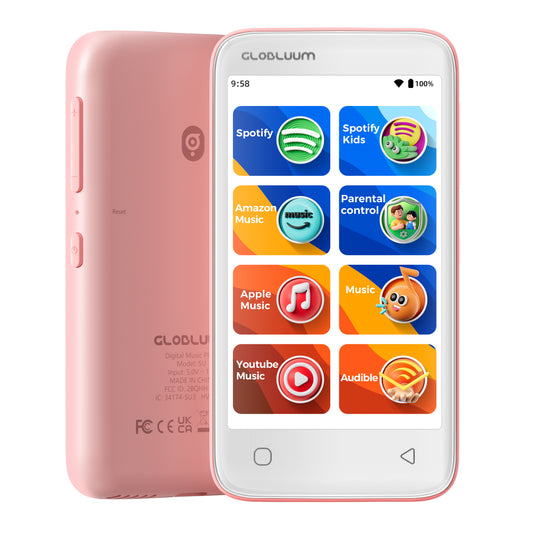
And with parental controls, you can gently set boundaries – giving your child access only to what you trust.
Everything in sync. Everything at ease.

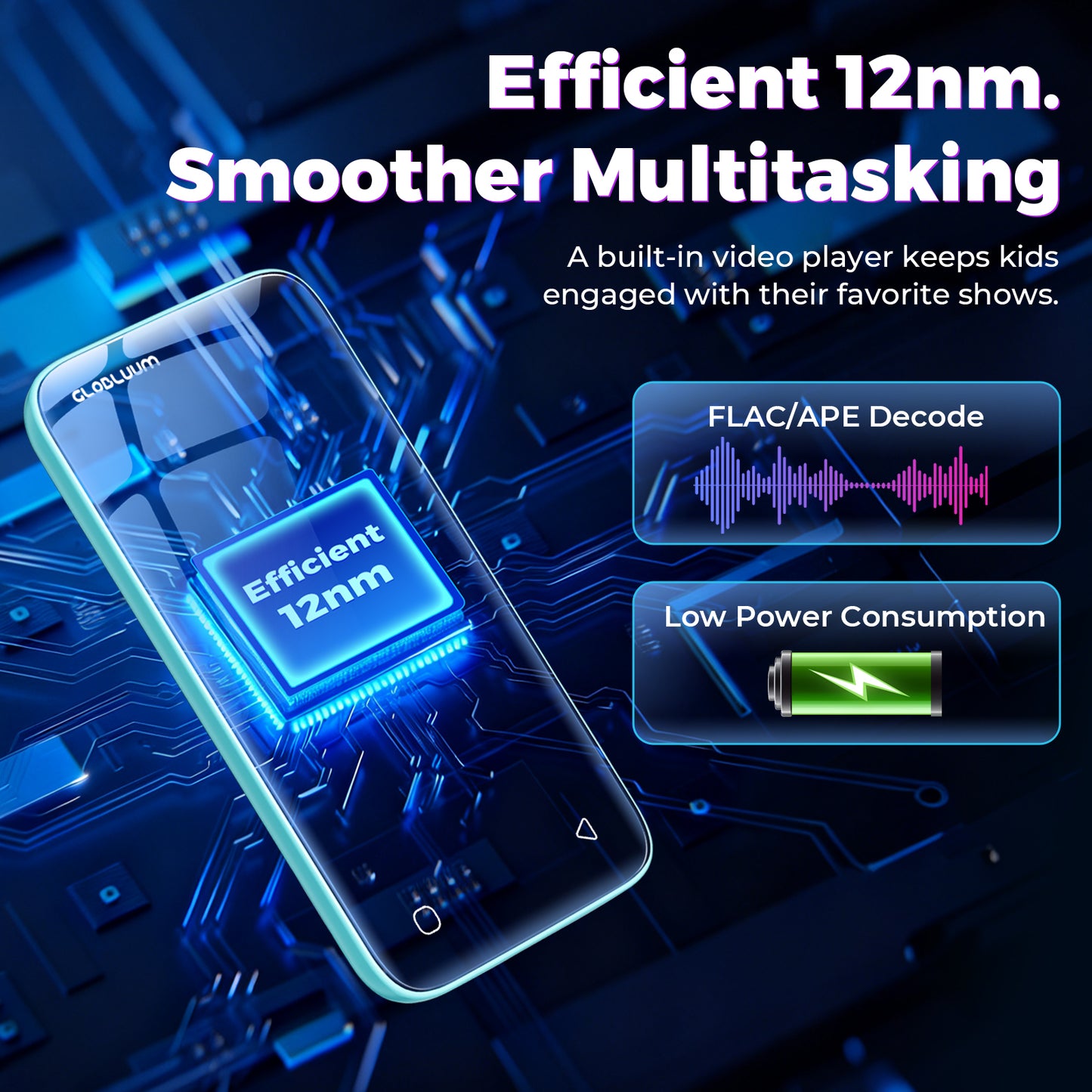
Efficient 12nm, Smooth and Detailed
Efficient 12nm – Smooth Performance, Richer Sound
Lower power use and smoother multitasking, plus hardware‑level lossless decoding for FLAC, APE, ALAC, WAV, AIFF, and more – delivering stable playback and beautifully detailed audio.
Hear the truth. Lose yourself in the music.

Dual‑Band Wi-Fi + Bluetooth 5.0
Stable, high‑speed connections for seamless multi‑device experiences.
Pair with your Bluetooth earbuds and get lost in your music during your daily commute.
Connect to a Bluetooth speaker and share favorite tunes with family in the living room.
Link to your car’s Bluetooth audio system and enjoy a lively soundtrack on every road trip.
At home, on the go, or behind the wheel – your sound stays smooth and uninterrupted.

The Music Player for Your Daily Rhythms
Fixed on your fridge, it fills your home with a motivating soundtrack that turns cleaning into a breeze.

The Music Player for Life's Easy Rhythms
Find your pause button. Lean back and let the music float through a peaceful afternoon.

Unlock a Massive 1TB of Music
Expand your space anytime to carry your entire music collection in your pocket.


Common Questions & Answers
How to Transfer Files from Your Computer to Music Players (SU3 / SU5 / SU7 / SU9)
Preparation:
- Ensure your computer is running Windows 7 or later, macOS, or Linux.
- Use a high-quality USB-A to USB-C cable (data sync capable, not just charging).
- Make sure your SU series player (SU3/SU5/SU7/SU9) has sufficient battery level (above 20%) to avoid interruption.
Step-by-Step Guide:
1. Connect the device
Plug the USB-C end into your SU player and the USB-A end into your computer's USB port. For older desktops, use a rear USB port for stable power.
2. Unlock the player and select USB mode
On the player screen, swipe down from the top to open notification panel. Tap the USB notification and select "File Transfer" or "MTP (Media Transfer Protocol)". Do NOT choose "Charging only" or "USB tethering".
3. Verify connection on your computer
- Windows: Open File Explorer → "This PC". Look for a device named "SU3", "SU5", "SU7", or "SU9" under "Portable Devices". If not there, open Device Manager → expand "Portable Devices" or "Universal Serial Bus devices". A yellow exclamation mark indicates missing driver.
- macOS: Install Android File Transfer or OpenMTP first. After connection, launch the app; it should detect your SU player automatically.
- Linux: Most distributions will mount the SU player as an MTP device. Use Nautilus or mtp-detect.
4. If the device is not recognized
- Try a different USB cable (many cables are charge-only).
- Restart both the SU player and your computer.
- Update or reinstall the MTP driver:On Windows, right-click Start → Device Manager → right-click the unknown device → "Update driver" → "Search automatically for drivers".If that fails, download "Universal MTP Driver" from Microsoft or use the manufacturer's driver.
5. Transfer files
Once recognized as a drive or device:
- Double-click the SU device icon to open internal storage or microSD card (if inserted).
- Simply drag and drop music folders (MP3, FLAC, WAV, etc.) onto the desired folder (e.g., "Music").
- Do NOT disconnect while transfer is in progress.
6. Safely eject the device
On Windows, right-click the SU drive in "This PC" and select "Eject". On macOS, drag the mounted volume to Trash (which turns into Eject icon). Then unplug the cable.
Troubleshooting common issues:
- "Device not responding": Reboot both devices and try a different USB port.
- Transfer stops halfway: Check cable stability; avoid USB hubs.
- MTP driver failure: Manually download "MTP Portable Device" driver from Windows Update Catalog.
- On Linux, permission denied: Install mtp-tools and mtpfs, then use jmtpfs to mount.
Pro tip: For very large music libraries (e.g., 1TB), use a microSD card reader instead of USB MTP, as MTP can be slow for thousands of small files. Copy directly to the microSD card via an adapter.
How to Connect Bluetooth Headphones or Speakers to Players (SU3 / SU5 / SU7 / SU9)
Before you start:
- Make sure your Bluetooth headphone/speaker is fully charged and in pairing mode (usually indicated by a blinking LED). Refer to its manual for the specific button press (e.g., hold power button for 5 seconds).
- Keep the SU player and the Bluetooth device within 1 meter of each other during pairing.
- Disable Bluetooth on any other nearby phones or tablets to avoid interference.
Step-by-step pairing:
- Enable Bluetooth on the SU player
Go to Settings → Bluetooth → Toggle Bluetooth ON. The player will automatically scan for available devices. - Put your Bluetooth device into pairing mode
Most devices enter pairing mode by holding the power/multi-function button until the LED flashes red and blue alternately. Consult the device manual if unsure. - Select your device from the list
On the SU player, under "Available devices", you should see the name of your headphone/speaker. Tap on it. A confirmation sound or "Connected" status will appear. - Test the connection
Play a song to verify audio is routed to the Bluetooth device. Adjust volume on both the player and the headphone/speaker.
If your device is not found in the list:
- Step 1: Turn Bluetooth OFF on the SU player, then turn it ON again. This triggers a fresh scan. Wait 10–15 seconds.
- Step 2: Ensure your Bluetooth device is still in pairing mode (some devices exit pairing mode after 2 minutes).
- Step 3: Restart both the SU player and the Bluetooth device (power cycle).
- Step 4: Clear previous pairings on the SU player: go to Bluetooth → Paired devices → tap the gear icon next to any old device → "Forget". Then re-scan.
- Step 5: If still not found, reset Bluetooth settings on the SU player (without factory reset):
Go to Settings → System → Reset options → Reset Wi-Fi, mobile & Bluetooth (this does not erase music files). - Step 6 (last resort): Factory reset the SU player.
Warning: This will erase all settings, paired devices, and possibly internal storage data. Backup first.
Go to Settings → System → Reset → Factory data reset.
Advanced troubleshooting for technical users:
- Codec compatibility: SU series supports SBC, AAC. If your headphones support aptX HD or LDAC, they will fallback to a compatible codec. No additional driver needed.
- Interference: 2.4 GHz Wi-Fi can interfere with Bluetooth. Temporarily switch Wi-Fi to 5 GHz or turn it off during pairing.
- Multiple connections: SU players do not support simultaneous connection to two Bluetooth audio devices. If you need to switch, disconnect the current one first.
- Range issues: After pairing, maximum range is about 10 meters (33 feet) line-of-sight. Walls reduce range.
- Firmware update: If Bluetooth is unstable, check the manufacturer's website for a firmware update for your SU player.
Pro tip: For best audio quality, disable Bluetooth absolute volume (if available in Developer Options) to prevent compression. Also, avoid using Bluetooth while the player is connected via USB to a computer, as that can cause audio glitches.
How to Ensure Successful WiFi Connection on Players (SU3 / SU5 / SU7 / SU9)
Before you start:
- Make sure your SU player's system time and date are correct (incorrect time can cause authentication failures).
- Keep the player within 2–5 meters of your WiFi router during initial setup.
- Know your WiFi password (case-sensitive).
Supported WiFi standards:
- SU series supports dual-band WiFi: 2.4 GHz (802.11 b/g/n) and 5 GHz (802.11 a/n/ac).
- Security modes: WEP, WPA, WPA2 (Personal), WPA3 (if supported by firmware; check your device).
- Both hidden SSID and broadcast SSID are supported.
Step-by-step connection:
- Go to Settings → Network & Internet → WiFi.
- Toggle WiFi ON and wait for the scan to complete (5–10 seconds).
- Select your network from the list. Networks may show frequency bands (2.4G or 5G) if available.
- Enter the password carefully (use "Show password" if needed).
- Tap "Connect". Wait for the status to change to "Connected".
Critical checks for successful connection:
- Not outdoor/public WiFi with captive portal – Public hotspots often require a web login. SU players cannot handle captive portals.
- No MAC address filtering (unless whitelisted) – If your router has MAC filtering enabled, add the SU player's MAC address to the allow list. Find MAC address in Settings → About → Status.
- DHCP enabled – The player must obtain an IP address automatically via DHCP. Static IP is possible via advanced settings (Modify network → Advanced → Static IP).
- Compatible band – 2.4 GHz is recommended for longer range; 5 GHz offers faster speed but shorter range. Make sure your router broadcasts the band you intend to use.
- Channel selection – For 5 GHz, avoid DFS channels (52–144) if your player has poor detection – use non-DFS channels like 36–48 or 149–165.
Troubleshooting when connection fails:
Network not visible?
- Ensure the router's SSID is not hidden (hidden networks are supported, but you must manually add them via "Add network").
- If using 5 GHz, move the player closer to the router (5 GHz has shorter range).
- Reboot the router and the SU player.
"Authentication error" (wrong password)?
- Double-check password case sensitivity.
- Try removing special characters from the password temporarily (some devices have issues with $, &, #).
"Failed to obtain IP address"?
- Log into your router and ensure DHCP server is enabled.
- Increase the DHCP address pool or reduce lease time.
- Reboot both devices.
Connected but no internet?
- Check if the router requires a captive portal login. SU players cannot use such networks.
- Verify that your internet connection is active on other devices.
Connection drops frequently?
- For 2.4 GHz: interference from microwaves, cordless phones, or neighboring routers. Change channel to 1, 6, or 11.
- For 5 GHz: DFS channels can cause drops when radar signals are detected. Switch to non-DFS channels (e.g., 36, 40, 44, 48, 149, 153, 157, 161).
- Update the SU player's firmware.
Advanced tips for technical users:
- Preferred band selection: In Developer Options (enable by tapping Build Number 7 times), you can set "WiFi Frequency Band" to 2.4 GHz only, 5 GHz only, or auto. This helps when both bands share the same SSID.
- Static IP: Modify network → Advanced → Static IP (useful if DHCP is unreliable).
- WiFi power saving: In Developer Options, disable "WiFi power saving" for more stable streaming (slightly higher battery drain).
- Check router logs: Look for "deauth", "association timeout", or "DHCP failure" entries.
Pro tip: If you travel with your SU player, create a mobile hotspot from your phone (5 GHz capable phones will provide 5 GHz hotspot). Test connection there to isolate player issues from router issues.
How to Securely Insert and Use an SD Card in Players (SU3 / SU5 / SU7 / SU9)
Supported SD Card Specifications:
- Type: microSD, microSDHC, microSDXC
- Maximum capacity: Up to 1TB (for all SU series models)
- File system: FAT32 or exFAT (NTFS is not supported). Cards above 32GB are typically pre-formatted as exFAT.
Step-by-Step Insertion:
- Locate the SD card slot on the side or bottom edge of your SU player. There may be a rubber dust cover.
- Hold the microSD card with the gold contacts oriented as shown in the user manual illustration.
- Gently push the card into the slot until you feel slight resistance.
- Push further until you hear a distinct "click" – this means the spring-loaded mechanism has locked the card in place. The card should sit flush with the device edge (not protruding).
- Verify detection: Go to Settings → Storage → Look for "SD card" or "External storage". The total capacity (up to 1TB) should appear.
If You Don't Hear a Click:
- The card may not be pushed deep enough. Use a fingernail or a small non-metallic tool (e.g., a wooden toothpick, plastic spudger, or the edge of a credit card) to press the card slightly further.
- Avoid using sharp metal objects like needles, as they can damage the slot pins.
- If the card still won't click, remove it and check for debris inside the slot. Use compressed air gently if needed.
How to Safely Remove the SD Card:
- Unmount the card first to prevent data corruption:
Go to Settings → Storage → Tap "Unmount SD card" or "Eject". Wait for confirmation. - Push the card inward until you hear a "click" – the card will pop out partially.
- Pull the card out gently with your fingers.
Common Troubleshooting (No Table):
- Card not detected
Re-insert the card and ensure you hear the click. Restart the player. Test the card on a computer to confirm it works. - "Card corrupted" error
Insert the card into a computer, back up your data, then format it as FAT32 or exFAT. - Card detected but files do not appear
Ensure music files are in supported formats (MP3, FLAC, WAV, AAC, OGG, etc.). Avoid special characters in file names. - Playback stutters or skips
The card may be too slow. Use a UHS-I Class 10 or A1 rated card for smooth playback of high-bitrate files. - Card sticks out after insertion
It is not fully seated. Push again until flush with the edge. If it still sticks, the slot may be damaged.
Pro Tip: Before using a new SD card, format it on a computer as exFAT with the default allocation unit size. Then create a folder named "Music" at the root. This helps ensure optimal compatibility and faster file access.
More Favorites Await
-
SU3 Safe Kids MP3 Player with Parental Controls. Supports Spotify Kids, Apple Music, Audible, Kindle. Great Gift for Kids.
4.65 / 5.0
(227) 227 total reviews
Regular price $79.99 USDRegular price -
SU5 Digital Music Player for Kids, 4" Full Touch Screen MP4 with Spotify, Spotify Kids, Google Play, Audible and Speaker.
4.7 / 5.0
(259) 259 total reviews
Regular price $69.99 USDRegular price -
SU9 Android Streaming Music Player with Bluetooth & WiFi, 4" Touchscreen MP3/MP4 Player
4.77 / 5.0
(240) 240 total reviews
Regular price $89.99 USDRegular price -
SU7 Digital Audio player with Bluetooth & Wi-Fi, mp3 Music player with Spotify, Pandora, Tidal, Deezer, Audible, Kindle and Speaker.
4.73 / 5.0
(376) 376 total reviews
Regular price $79.99 USDRegular price




- 5 stars: 276 (73%)
- 4 stars: 99 (26%)
- 3 stars: 0 (0%)
- 2 stars: 0 (0%)
- 1 star: 1 (0%)
Je n’ai jamais reçu le colis…???
I never recieved the marcel…???
Ich habe das Produkt im Rahmen meiner Amazon-Vine-Mitgliedschaft kostenlos erhalten und kann es daher objektiv und unvoreingenommen beurteilen.Der erste Eindruck ist wirklich positiv. Der Player wirkt hochwertig verarbeitet und erinnert von Bedienung und Optik eher an ein kleines Smartphone als an einen klassischen MP3-Player.Besonders praktisch finde ich, dass viele Apps bereits vorinstalliert sind. Spotify, Spotify Kids, Audible und weitere Dienste sind direkt verfügbar, sodass man nicht erst alles selbst einrichten muss.Was mir gefällt:* hochwertige Verarbeitung* schönes Display* wirkt wie ein kleines Smartphone* viele Musik- und Hörbuch-Apps bereits installiert* gute Klangqualität* ausreichend SpeicherplatzDie Bedienung läuft insgesamt flüssig und Android bietet viele Möglichkeiten, wenn man Musik, Hörspiele oder Hörbücher an einem separaten Gerät nutzen möchte.Was man wissen sollte:* die Ersteinrichtung bzw. die Vorinstallation der Apps war teilweise etwas tricky* man muss sich trotzdem durch einige Konten und Einstellungen arbeiten* durch die Smartphone-ähnliche Oberfläche kann es für jüngere Kinder etwas komplex wirkenFazit:Ein hochwertiger Musikplayer mit vielen Funktionen und moderner Android-Oberfläche. Wer ein separates Gerät für Musik, Hörbücher und Podcasts sucht, bekommt hier fast ein kleines Smartphone ohne Telefonfunktion.
The touchscreen media player arrived to me in perfect condition. It came in a compact, stylish good looking colorful box. It looked a bit childish (like a toy), but it looked good.After I opened the box, I saw the player was sitting on top. Around it, there was a frame made of white foam. It prevented it from moving inside the box and protected it very well.There was also a transparent silicone case around the player, and there was also a screen protector on the screen.In person, the player looks a bit plasticky. It does feel a bit like a toy.I like that comes with a 64GB memory card. Time will tell if it a reliable one.After I turned on the player. I noticed that it is pretty much like an Android phone (except the call feature and some other ones).Overall, it works fine. The only weird this is that there is no middle button (like the on that you have a on a standard 3 button navigation Android UI). Here the home button is missing.But apart from that the player does work.It is useful for playing media, but it a bit too pricey for what it offers (especially since it is not a HiFi DAC player, but a regular one).I think I should give it a 3.9-star review.
Das Einzige, woran ich hier etwas auszusetzen habe ist, dass der Player zwar vorsorglich mit Schutzhülle kommt (👍 Pluspunkt) allerdings ohne Schutz für das Display. Nachdem ich ihn das erste Mal in der Tasche hatte, hatte ich auch prompt die ersten Kratzer auf dem Display 😑. Ansonsten finde ich ihn nicht schlecht. Er ist aufgebaut wie ein kleines Smartphone. Mit Apps, die sich wie gewohnt durch Drücken und Halten verschieben lassen, auch löschen lassen, sowie man auch neue/zusätzliche herunterladen kann. Per Wischen lässt sich zwischen Seiten wechseln. Wie beim Smartphone. Einige Apps sind bereits drauf, darunter die bekanntesten Musik- und Hörbuch-Apps. Für mich waren diese uninteressant. Ich habe meine Musik auf eine SD-Karte gespielt (es liegt sogar eine bei, das wusste ich vorher nicht) und nutze den Player im Auto. Mein Auto verfügt noch nicht über den heutigen Standard, es ist Baujahr 2005, und ich wollte gern meine Musik auf einem Display angezeigt bekommen 😊. Also habe ich den MP3-Player per Aux-Kabel (liegt bei) mit dem Autoradio verbunden. Ich musste erst noch einige Einstellungen am Sound verändern - was bei dem Player auch wunderbar geht, dank Equalizer und anderen Einstellungsmöglichkeiten - damit es nach was klingt. Ich bin zufrieden, es funktioniert alles so wie ich es mir vorgestellt habe. Der Akku hält auch (noch) sehr lang, obwohl ich eingestellt habe, dass der Bildschirm erst nach 30 Minuten (30min ist das Maximale) ohne Berührung ausgeht. Nach 30 Minuten sind ungefähr 10% Akkukapazität weg.
Très belle surprise avec ce lecteur MP3 ! La qualité est vraiment au rendez-vous, aussi bien au niveau du design que des performances. La couleur lavande est élégante et originale.L'appareil est compact, léger et agréable à prendre en main. L’écran tactile de 4 pouces est réactif, lumineux et facile à utiliser, avec une interface fluide et intuitive.La connexion Bluetooth 5.0 fonctionne tres bien : l’appairage avec mes écouteurs et enceintes est rapide et stable, sans coupures. Le WiFi est également un gros avantage qui permet d’accéder facilement aux applications de musique. C’est très pratique pour écouter de la musique, des podcasts ou des livres audio partout.La qualité sonore est excellente avec un son clair, puissant et bien équilibré. Le haut-parleur intégré est correct, mais avec un casque audio le rendu est encore meilleur. La mémoire de 96 Go offre énormément d’espace pour stocker musique, vidéos et fichiers.J’apprécie aussi la présence de la radio FM et la compatibilité Android qui rendent l’appareil très polyvalent. La batterie tient bien la charge et permet plusieurs heures d’utilisation sans problème.
Ce lecteur m'a beaucoup surpris, déjà par sa qualité de fabrication pour un lecteur bas de gamme chinois, mais surtout par l'intégration d'une version Android moderne (14), d'un ensemble processeur et mémoire cohérent : Mediatek Helio A22 et 3 Go de mémoire, 32 Go de stockage intégré et une carte micro SD de 64 Go livré avec et d'un écran de 4" IPS (800x480) de bonne qualité et bien lumineux et du Wifi 6 et BT 5.0, incroyable à ce prix. Il y a une coque de bonne qualité dans la boite et une protection d'écran (film plastique) est appliqué en usine.Déjà, le lecteur indique vrai sur toutes ses caractéristiques, pas de mensonge sur la version Android, le processeur ou la quantité de mémoire (vive et stockage). Il n'y a et n'y aura évidement aucune mise à jour d'Android mais c'est une version 14 (donc il y a le thème sombre) et qui encore pas trop vielle et qui peut faire tourner la plupart des applications actuelles.Le lecteur lit parfaitement tout les formats audio et vidéo sans soucis. La qualité de restitution est très correcte et je n'ai rien à reprocher sur ce point.Le lecteur à beaucoup d'application installés par défaut (Spotify et Spotify Kids, Apple Music, Deezer, Audible, YT Music, Mx Player, X, Facebook ...) mais vous pouvez installer ce que vous souhaiter car il y a le Play Store, pour cela il faut aller "Gestion Parentale" et là vous avez accès au Play Store, et au fonction de verrouillage parentale bien pensé (on peut même bloquer l'accès au paramètres).D'ailleurs par défaut le lecteur est programmé pour s'éteindre au bout d'une heure de fonctionnement, mais vous pouvez aussi programmer son allumage et extinction à heure fixe, c'est vraiment bien pensé.Les écouteurs livrés avec sont très mauvais, pas vraiment étonnant à ce prix, mais disposer d'une vraie prise jack 3.5mm et d'une BT 5.0 très correct.J'ai ouvert le lecteur et je suis surpris par la qualité de la construction à ce prix. L'écran et légèrement collé et peu s'enlever assez facilement, c'est bien. La batterie pourra être remplacé mais je n'ai pas trouvé la référence de l'écran. La jack et le connecteur USB est soudé à la carte mère, rien d'étonnant à ce prix, mais c'est dommage.Le haut parleur interne est mono et bien que son volume puisse être très élevé, le son est totalement distordu passé un certain points.La batterie de 1750 mAh ne ferra pas de miracle en utilisation intensive mais est très bien pour la lecture audio et vidéo, moins pour la navigation, les applications et les jeux où elle se décharge plus vite.Au final, qu'en penser de ce petit appareil ? Et bien il est très bien, mais surtout je pense que le fabricant loupe un marché, en effet, pour les parents ne voulant pas donner à un enfant un téléphone mais leur permettre quand même d'accéder à la technologie (application et écosystème Android) tout en pouvant contrôler l'accès au maximum et bien, c'est parfait et c'est même mieux qu'un téléphone ! En effet il n'y a pas d'appareil photo (et c'est un plus dans le cadre d'utilisation par les plus jeunes) mais surtout le système de contrôle parental est bien intégré et facilement utilisable (verrouillage appareil, accès paramètre, Play Store et extinction automatique/programmation). Je pense que c'est une vrai alternative au téléphone.Je le trouve vraiment très bien et je l'utilise en lecteur audio dans la voiture (partage de connexion) depuis 3 semaines sans aucun soucis :-)
Incroyable ce petit lecteur mp3 avec android 14.Est-il facile à emporter ?C'est un lecteur MP3 de petite taille donc il est sincère partout.Quelle est ta capacité de stockage interne ?Le stockage interne fait 32 Go mais vous avez la possibilité d'insérer une micro SD pour augmenter cela.Est-ce qu'elle est compatible avec Spotify ?Il faut savoir que au premier démarrage de ce lecteur MP3 il y a des applications préinstallées comme Spotify Deezer tidal Apple music etc...Est-il livré avec un étui ?Oui il est inclus une protection ce qui est pas mal pour protéger l'appareil.Ça me rappelle effectivement les anciens lecteurs MP3, sauf que ceux ci sont sur Android et très moderne.Je vous le recommande, bon choix du processeur helio A22, il fonctionne bien 4 cœurs à 2Ghz c'est pas mal pour un si petit lecteur c'est fluide et très rapide pour un appareil d'entrée de gamme.
Ich habe dieses Mobilgerät bestellt, weil ich ein kompaktes Zweitgerät für spezielle Apps meiner Wahl gesucht habe, ohne mein Haupttelefon dafür nutzen zu müssen. Das handliche, leichte Design gefällt mir optisch und haptisch sehr gut. Durch den vollen Zugriff auf den App-Store kann ich das System weitgehend frei nach meinen eigenen Vorstellungen einrichten. Es ist bei Lieferung ein großes SD-Wechselmedium eingesteckt, das für verhältnismäßig viel Speicherplatz sorgt.Die umfangreichen Vorinstallationen erweckten bei mir anfangs zwar Sicherheitsbedenken bezüglich schädlicher Software, aber eine genaue Suche ergab keine tatsächlichen Auffälligkeiten. Einzig der fehlende Mobilfunkzugang aufgrund fehlenden SIM-Kartenslots und ein paar nicht deinstallierbare Kinder-Anwendungen trüben den ansonsten positiven Gesamteindruck.👍🏼- Weitgehend freie Gestaltung durch Zugriff auf Downloads sämtlicher Android-Apps- Viel Speicherplatz, ein großer Wechselspeicher als SD-Karte ist bereits im Gerät enthalten- Gute Haptik, leichtes und handliches Gehäuse, stabile Schutzhülle schon vorhanden- Sicheres Gefühl nach Überprüfung, die installierte Software weist nach ausführlicher Suche keine Auffälligkeiten auf👎🏼- Manche speziell für Kinder gedachte Anwendungen lassen sich leider nicht deinstallieren- Ohne Steckplatz für eine SIM-Karte besteht unterwegs immer die Abhängigkeit von WLAN oder Hotspot- Die Menge an werkseitig vorinstallierten Programmen kann anfänglich Sorge vor Schadsoftware erwecken
Globluum nous propose un lecteur MP3 Bluetooth fourni avec :1️⃣ 1 carte SD de 64 Go2️⃣ 1 paire d'écouteurs3️⃣ 1 câble USB3️⃣ 2 paires d'embouts d'oreille de rechange4️⃣ 1étui de protection5️⃣ 1 notice en français📌 Dimensions et poids🎵 Poids : 98 g🎵 Longueur : 11,8 cm🎵 Largeur : 6,2 cm🎵 Epaisseur : 1,1 cm📌 Caractéristiques🎵 Ecran : 4''🎵 Bluetooth 5.0🎵 Durée de lecture : 25 à 30 heures🎵 Mémoire : jusqu'à 1 To (mémoire interne intégrée de 32 Go + carte TF)📌 Fonctionnalités🎵 Enregistreur vocal🎵 Radio🎵 Lecteur vidéo (AVI, MKV, MP4, RMVB, MPEG, MOV, VOB, WMV, WEBM, DIVX, F4V, FLV, XVID, 3GP)🎵 Lecteur audio (MP2, MP3, WMA, APE, FLAC, WAV, OGG, M4A, ACC, )📌 AvisCe lecteur MP3 se distingue par sa grande polyvalence et ses fonctionnalités modernes. Grâce au Wifi et à son système Android 14, il permet d’accéder facilement à des applications comme Google, Audible, Spotify ou Amazon Music. Son écran couleur offre une navigation fluide ainsi qu'une résolution correcte et le Bluetooth 5.0 assure une connexion stable avec les appareils sans fil.Compact et élégant, il convient parfaitement à une utilisation quotidienne, en déplacement ou en voyage d'autant plus qu'il est fourni avec une coque de protection en silicone qui amortira le choc en cas de chute. Avec son format réduit, il se glissera facilement dans une poche ou une sacoche.L'autonomie est correcte (de 25 à 30 H) et la mémoire de base peut être largement étendue en remplaçant la carte SD fournie ce qui permet de stocker des images, des documents, des vidéos, des musiques et même des applications.Enfin, il faut préciser que la vitesse de transfert des fichiers est assez lente.
Picked this up for my niece and absolutely love how music-focused it is without the distractions of a regular phone or tablet. The sound quality is really impressive, the touchscreen is easy to use, and having access to apps like Spotify Kids, Audible, and Libby makes it perfect for both music and audiobooks.I also love that it feels like a much safer option for younger kids while still giving them something modern and fun. The Bluetooth and WiFi work well, the storage is huge, and the Cosmic Orange colour is such a fun bonus. Great little device for music lovers without handing over a full smartphone.
The mp3 player had to be charged when we received it, but it didn’t take too long to get it fully charged.The player is preloaded with a ton of apps, very unnecessary in my opinion but some may like that. We deleted a lot of the apps, such as FB, snapchat, discord etc to make it more child friendly.We pept the kindle and library apps which loads a collection of classics like pride and prejudice and even reads it out for you.Sound quality:It’s not too bad actually. I was prepared for worse but pleasantly surprised. It does sound a bit brassier than my iPhone for example or a proper speaker, but you can always connect it to external speakers.Performance and usage:It does lag a bit when you need to swipe to the next screen, but I think this is good for parents to play music from or stories and you can supervise usage. It’s almost an android :)
Music sounded clean and enjoyable through both headphones and Bluetooth speakers, especially with longer listening sessions during travel. Menus felt smooth without awkward delays, and moving between audiobooks, playlists and radio stayed straightforward. I liked having several listening apps ready immediately instead of spending ages setting things up first. The touchscreen responded properly and didn’t feel clunky when browsing larger libraries. Battery performance held up comfortably through daily commuting and evening listening before needing another charge. WiFi connection stayed stable around the house and downloads completed without issues. The speaker itself felt acceptable for casual use, though headphones brought out a much fuller sound. Carrying this separately from my phone became surprisingly useful during walks and gym sessions since distractions from messages and calls disappeared completely.
This MP3 player with android operating system works fine as a very basic media player, which is definitely best used for audio vs any video apps.I have it in my office space paired to a bluetooth speaker, mainly for running YouTube music through it and for this it works great. It's no where near as fast as your modern smartphone, or as zippy, but if you can get past the 1+ minute start-up sequence to power it on, you can use a number of different apps for music or audiobooks etc.The screen is reasonable but only a small size and while you can play back video files, and a lot of different file formats, it's best used for audio and will also handle a ton of music files on the local storage (96Gb to play with).It connects fine to all my bluetooth audio devices and speakers and is really simple to use. This would be perfect for young kids or elderly persons not overly familiar with technology. It connects to your WiFi to use streaming apps or to get you online.Battery life is reasonable... Nothing stellar but would easily last 2 days if you are just music streaming with the screen off. With the screen on or constantly connected to bluetooth speakers you will likely need to recharge every other day (via USB-C).Overall these are pretty good basic media players and cheap audio devices with a ton of storage for the price. 5 stars for value and simplicity of use.
Très belle surprise avec ce lecteur MP3 ! L’écran tactile de 4 pouces est fluide et agréable à utiliser, et la qualité du son HiFi est vraiment très bonne avec un son clair et puissant.J’apprécie énormément la compatibilité avec Spotify, Audible et Amazon Music qui permet d’écouter facilement ses contenus préférés en WiFi. Le Bluetooth 5.0 fonctionne parfaitement avec mes écouteurs sans coupure.La mémoire de 96 Go offre beaucoup de place pour stocker musique et vidéos, et la radio FM est un vrai plus. En plus, la couleur lavande est très jolie et originale. Compact, pratique et complet, il est parfait pour écouter de la musique partout sans utiliser son téléphone !
This is either a very well-equipped MP3 player, or a very basic phone, depending on how you look at it.The software is clearly based on Android but with a lot of the fluff stripped back and optimised for simplicity. So if you know how to use an android phone then you'll have no trouble with this. Be warned that a lot of the apps and connectivity remain in place by default (including social media), but as a parent you can restrict pretty much everything app by app.All that being said, this is an ideal media device for kids of most ages, you just need to restrict the apps as needed.
This is a great budget friendly MP3 player. Good for offline listening and great for kids. It comes preloaded with some great apps like spotify, spotify kids, audible, amazon music etc. With 96GB it provided excellent storage for offline use for me, my wife and my kids. It creates a great separation from my phone. I have access to my music or audiobooks without the distraction of my phone. I am not ready to give my kids a full smartphone so this MP3 player helps to keep them a bit more basic with much of the entertainment they need. It’s not as fast as a smartphone, but for music, audiobooks, and streaming, it’s more than enough.Sound Quality:The audio surprised me, it’s clear, loud, and has a nice balanced tone. Bluetooth 5.0 connects instantly to headphones and speakers with no dropouts. Headphone connections both wired and bluetooth is stable with good enough range for the wireless. The sound quality is clear and loud enough, so no issues with the audio whatsoever.Storage:As mentioned earlier, the 96GB capacity is fantastic for my needs. I loaded tons of songs, audiobooks, and playlists and still have room left. It’s perfect for travel and for my kids who love listening to music and stories.Screen & Design:The 4-inch touchscreen is easy to navigate, and the device is super lightweight. The lavender finish looks premium and doesn’t show fingerprints. The display though does seem more kid friendly or geared towards kids, which is fine since my kids also uses it alot.Battery:The battery life is ok, it's not spectacular but enough for daily use. I get several hours of music or audiobook playback without needing to recharge.Overall:This is an amazing value for the price. It’s the perfect dedicated music and audiobook device without the distractions of a full phone, which I do need from time to time and that was one of the main reason for getting this. It's great whether it’s for yourself or a child, it’s a fantastic buy. I’m extremely happy with it. My wife uses it when she goes for a walk or go to the gym, so works well for the family.
I’ve been using this 96GB MP3 player and overall it’s a very capable little media device. The large storage is a big advantage, and it comfortably holds a lot of music, audiobooks, and downloaded content without needing constant management.The inclusion of Bluetooth 5.0 and WiFi makes it quite flexible. Pairing with headphones is straightforward, and streaming apps like Spotify, Audible, and others run smoothly once set up. The touchscreen is responsive enough for everyday use, and the interface feels fairly familiar since it’s Android-based.Sound quality is another strong point. The audio is clear and has a nice level of detail for a device in this category, especially when used with decent headphones. FM radio is a nice extra feature as well.Battery life is reasonable depending on usage, though heavy streaming will drain it faster than offline playback. The build feels lightweight but still solid enough for daily use.Overall, it’s a versatile music player that works well for both streaming and offline listening, and it offers a lot of features in a compact device.
This MP3 player is a small unit that fits right into the pocket. Great for older kids who don't just want to listen to the music but also want to use an internet browser. This device has a huge amount of storage space and comes with the necessary protection, with a clear bumper case. I found no issues for the intended use; it has a built-in speaker, and you can even listen to FM radio with wired earbuds. Bluetooth connection was convenient as well for various use cases. The boot-up time is a bit slow, though, and the battery will continue to drain when not being used. A good little device overall.
The built quality is good. The design is modern, sleek and attractive. Lightweight and small, so easy to carry around in the pocket. It is Android-based and came pre-installed with several apps including Spotify, Amazon music, Pandora, etc. It supports different file formats. The connectivity via Bluetooth is smooth and stable. The sound is also impressive with decent bass.Arrived well-packaged as shown in the attached photos.The price is slightly expensive in my opinion.Overall, I am happy to own it and will recommend.
This is a really capable little media player and feels much closer to a compact Android device than an old-school MP3 player.The setup is straightforward and having apps like Spotify, Audible and Amazon Music already installed makes it usable almost immediately. The Android 14 interface feels familiar and responsive, and access to Google Play means you can install pretty much anything else you want.Sound quality is very good through proper headphones, especially with higher-quality audio files. The built-in speaker is fine for basic use, but this device definitely shines more with wired or Bluetooth headphones.The 96GB storage is generous as well and gives loads of room for offline music, podcasts, audiobooks or downloaded playlists.I also like the size - compact enough to carry easily without draining your phone battery all day when listening to music.