🎧 How to Transfer Music to MP3 Player (Windows & Mac Full Guide)
This guide explains how to transfer music to your MP3 player from Windows and Mac computers using a USB cable, MTP mode, wireless transfer, or an SD card. It also includes troubleshooting tips for common issues like unrecognized devices or missing songs.
1. 💻 How to Transfer Music on Windows (USB MTP Method)
This is the fastest and most reliable method for Windows users.
1.Connect the Device:
Use a USB-A to USB-C data cable to connect your MP3 player to the computer. Make sure the player is turned on and unlocked.
2.Select MTP Mode:
On the MP3 player screen, select "File Transfer (MTP mode)". (Note: Do NOT select "Charging only")
3.Locate Your Player:
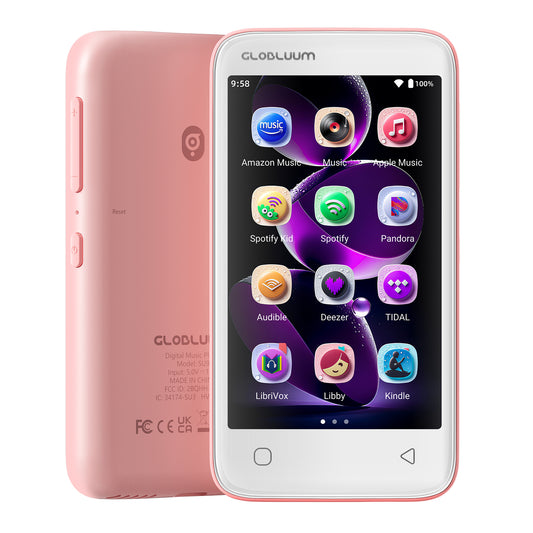
Open "This PC" on your Windows computer and look for your device (usually named SU series MP3 player).
4.Drag and Drop Files:
Open the Internal Storage or SD Card folder. Drag and drop your music files (MP3, FLAC, WAV, etc.) directly into the folder.
5.Scan for Music:
Disconnect safely. On your MP3 player: Open the "Music" App → Tap "Music Scan" → Select "Scan All" to refresh your library.
🔍 Windows Transfer Troubleshooting:
If your MP3 player is not recognized:
· Try another USB port (preferably on the back of a desktop PC).
· Ensure you are using a data transfer cable (some cables only support charging).
· Double-check that MTP mode is selected on the device.
2. 🍎 How to Transfer Music on Mac
Since macOS does not natively support MTP file transfer, please use one of the two verified methods below.
✅ Option A: Wireless Transfer via Send Anywhere (Recommended)
The easiest and most stable wireless method. No cables required.
-
On your Mac: Go to send-anywhere.com, upload your music files, and generate a 6-digit code.
-
On your MP3 player: Ensure the device is connected to Wi-Fi. Tap "File Transfer" to open the Send Anywhere app, tap "Receive", and enter the 6-digit code.
🔌 Option B: USB Transfer Using OpenMTP
A free, reliable alternative that makes your player work like a standard flash drive on Mac.
- Download and install OpenMTP from the official site: openmtp.ganeshrvel.com.
- Connect your MP3 player to the Mac using a data cable.
- Open the OpenMTP app, locate your music files on the Mac side, and drag them over to the device storage side.
⚠️ Important Mac Notes:
· Do NOT use Android File Transfer (it is outdated and highly unstable on newer macOS versions).
· Always use a proper data cable or a high-quality USB-C adapter/hub.
3. 🚀 Fastest Way for Large Libraries (SD Card Method)
If you are transferring tens of gigabytes of music at once, this is the most stable and high-speed method.
- Turn off the MP3 player and remove the microSD / TF card.
- Insert the card into a card reader and plug it into your computer.
- Copy your music folders directly onto the card.
- Insert the card back into the MP3 player and run a "Music Scan" inside the Music App.
4. 🎵 Technical Tips & Troubleshooting
📊 Supported Audio Formats
-
Supported: MP3, WAV, FLAC, APE, OGG, AAC, WMA
-
Not Supported: ALAC (Apple Lossless), DSF
-
Tip: You can convert unsupported formats using Foobar2000 (Windows) or XLD (Mac).
🏷️ Fix "Unknown Artist" or Incorrect Song Info
If your songs show incorrect titles or missing artists, use MP3tag or MusicBrainz Picard on your computer to edit the ID3 tags before transferring.
📜 Playlist (.m3u) Not Working?
Open the .m3u file with a text editor. Replace absolute file paths (like C:\Users\Name\Music\song.mp3) with relative paths (like Music/song.mp3).
5. ❓ FAQ
Why is my MP3 player not showing up on my computer?
Ensure your USB cable supports data transfer, the device is unlocked, and you have explicitly selected MTP mode on the player's screen upon connection.
What is MTP mode?
MTP (Media Transfer Protocol) is a standard protocol that allows computers to safely access the MP3 player's internal storage to manage media files without corrupting the system files.
Why are my songs not appearing after a successful transfer?
The device needs to index the new files. Always go to the Music App → Music Scan → Scan All to refresh the music database.
📩 Need Help?
If you run into any issues, please contact us at support@globluum.com. Include your order details, device model, and a screenshot of the issue if possible.
🎧 Enjoy your music anytime, anywhere!
— Globluum Technical Support Team