How to Install Radio Paradise on Your Music Player?
Step 1: Locate the Entry Point
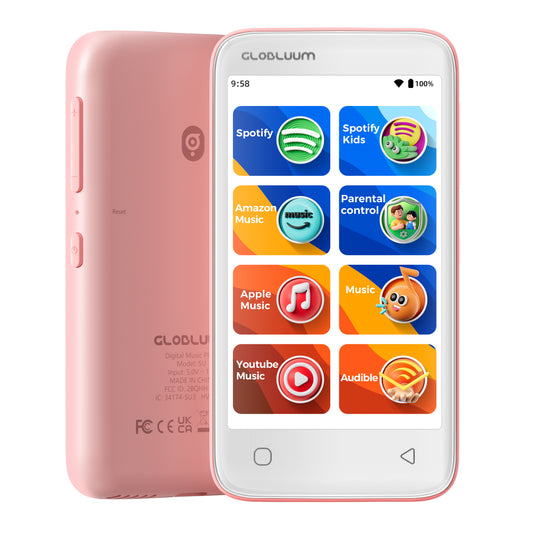
Find the "Parental Control" app on your device's home screen

Step 2: Access Google Play
Turn on your music player and connect it to Wi-Fi. Open "Parental Control", then tap on the "GooglePlay" option.

Step 3: Search for the App
Once in the Play Store, tap the "Search" icon (magnifying glass) at the bottom. Type “Radio Paradise” in the search bar.

Step 4: Install the App
Look for the official app and tap the blue “Install” button.

⚠️ Important Note
For SU series products:
- SU7 / SU9 support installing Radio Paradise
- SU3 / SU5 are children’s versions and do not support third-party app installation due to system restrictions
What should I do if installation fails?
Please check the following:
- Ensure Wi-Fi connection is stable
- Make sure you are signed into a Google account
- Confirm your device is SU7 / SU9 (SU3 / SU5 do not support installation)
- Restart the device and try again
-
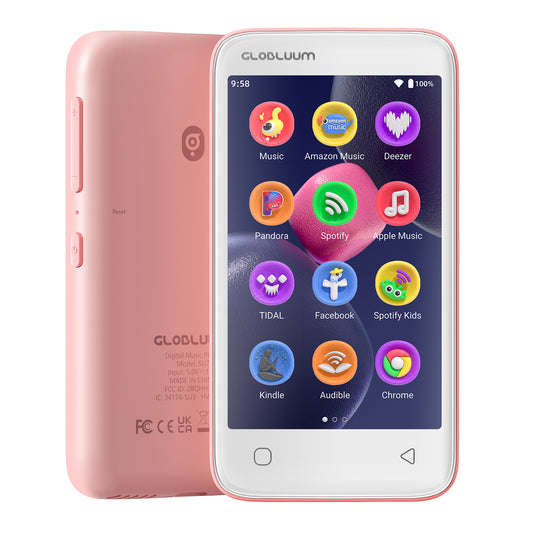
SU9 Android Streaming Music Player with Bluetooth & WiFi, 4" Touchscreen MP3/MP4 Player
Vendor:GlobluumRegular price $79.99 USDRegular price -
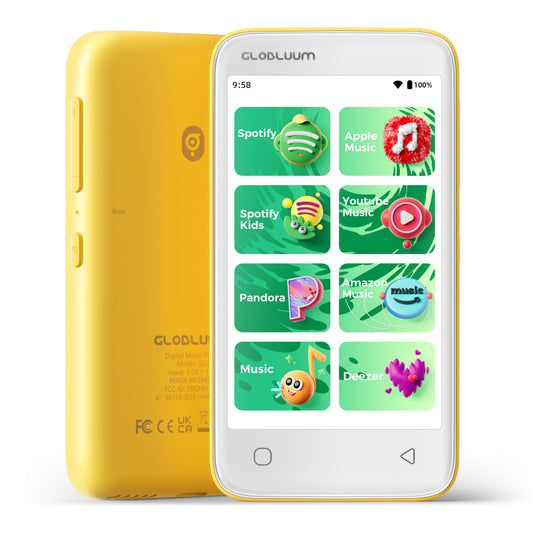
SU3 Safe Kids MP3 Player with Parental Controls. Supports Spotify Kids, Apple Music, Audible, Kindle. Great Gift for Kids.
Vendor:GlobluumRegular price $69.99 USDRegular price -
SU5 Digital Music Player for Kids, 4" Full Touch Screen MP4 with Spotify, Spotify Kids, Google Play, Audible and Speaker.
Vendor:GlobluumRegular price $59.99 USDRegular price -
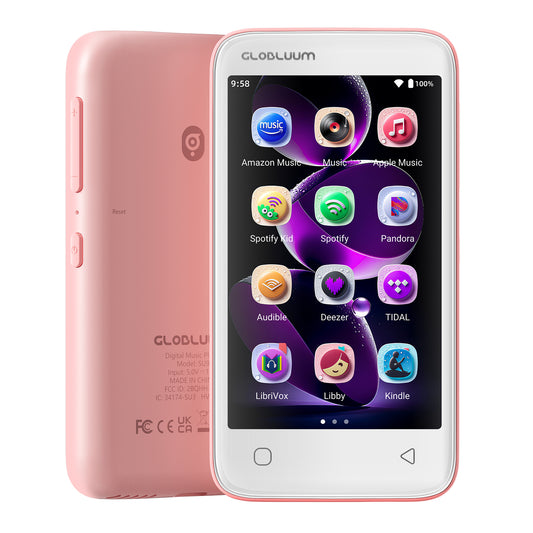
SU7 Digital Audio player with Bluetooth & Wi-Fi, mp3 Music player with Spotify, Pandora, Tidal, Deezer, Audible, Kindle and Speaker.
Vendor:GlobluumRegular price $69.99 USDRegular price