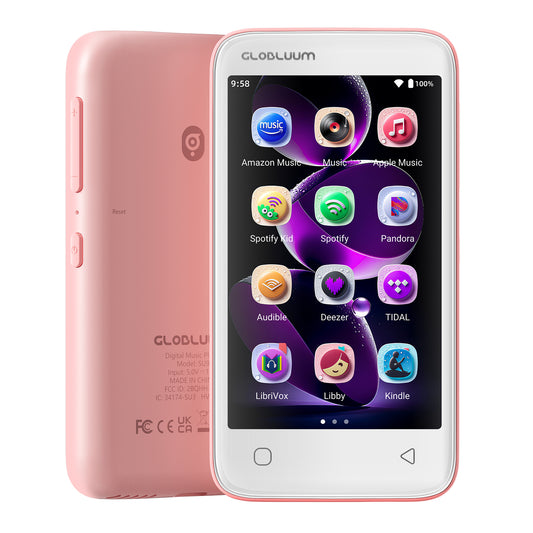
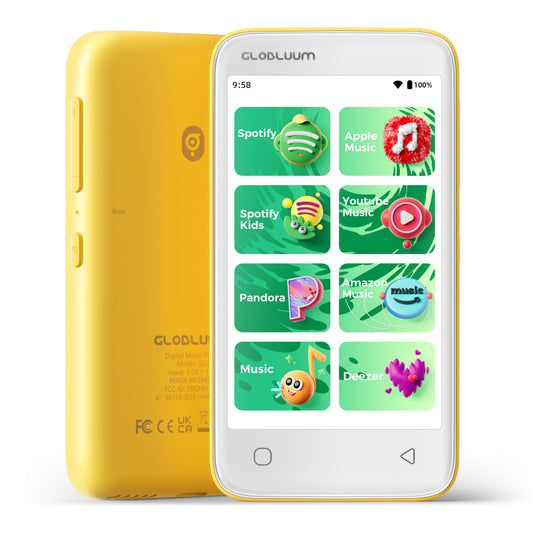
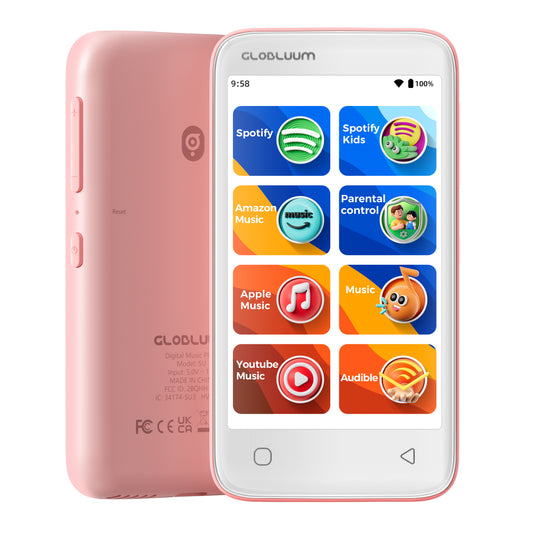
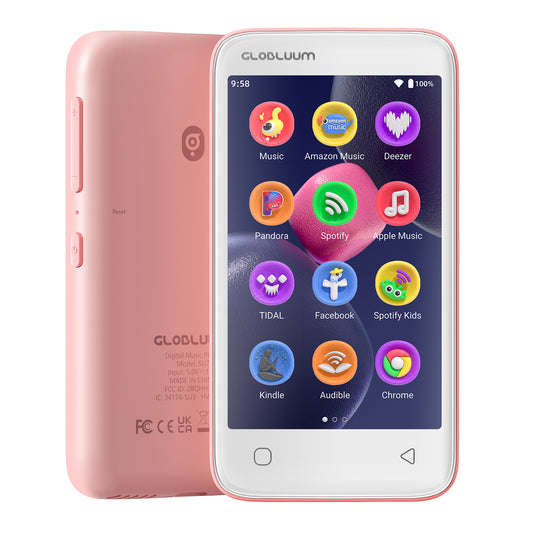
How to Connect Bluetooth Headphones or Speakers to Players (SU3 / SU5 / SU7 / SU9)
Before you start:
- Make sure your Bluetooth headphone/speaker is fully charged and in pairing mode (usually indicated by a blinking LED). Refer to its manual for the specific button press (e.g., hold power button for 5 seconds).
- Keep the SU player and the Bluetooth device within 1 meter of each other during pairing.
- Disable Bluetooth on any other nearby phones or tablets to avoid interference.
Step-by-step pairing:
-
Enable Bluetooth on the SU player
Go to Settings → Bluetooth → Toggle Bluetooth ON. The player will automatically scan for available devices. -
Put your Bluetooth device into pairing mode
Most devices enter pairing mode by holding the power/multi-function button until the LED flashes red and blue alternately. Consult the device manual if unsure. -
Select your device from the list
On the SU player, under "Available devices", you should see the name of your headphone/speaker. Tap on it. A confirmation sound or "Connected" status will appear. -
Test the connection
Play a song to verify audio is routed to the Bluetooth device. Adjust volume on both the player and the headphone/speaker.
If your device is not found in the list:
- Step 1: Turn Bluetooth OFF on the SU player, then turn it ON again. This triggers a fresh scan. Wait 10–15 seconds.
- Step 2: Ensure your Bluetooth device is still in pairing mode (some devices exit pairing mode after 2 minutes).
- Step 3: Restart both the SU player and the Bluetooth device (power cycle).
- Step 4: Clear previous pairings on the SU player: go to Bluetooth → Paired devices → tap the gear icon next to any old device → "Forget". Then re-scan.
-
Step 5: If still not found, reset Bluetooth settings on the SU player (without factory reset):
Go to Settings → System → Reset options → Reset Wi-Fi, mobile & Bluetooth (this does not erase music files). -
Step 6 (last resort): Factory reset the SU player.
Warning: This will erase all settings, paired devices, and possibly internal storage data. Backup first.
Go to Settings → System → Reset → Factory data reset.
Advanced troubleshooting for technical users:
- Codec compatibility: SU series supports SBC, AAC. If your headphones support aptX HD or LDAC, they will fallback to a compatible codec. No additional driver needed.
- Interference: 2.4 GHz Wi-Fi can interfere with Bluetooth. Temporarily switch Wi-Fi to 5 GHz or turn it off during pairing.
- Multiple connections: SU players do not support simultaneous connection to two Bluetooth audio devices. If you need to switch, disconnect the current one first.
- Range issues: After pairing, maximum range is about 10 meters (33 feet) line-of-sight. Walls reduce range.
- Firmware update: If Bluetooth is unstable, check the manufacturer's website for a firmware update for your SU player.
Pro tip: For best audio quality, disable Bluetooth absolute volume (if available in Developer Options) to prevent compression. Also, avoid using Bluetooth while the player is connected via USB to a computer, as that can cause audio glitches.
We are here to help!
If you run into any problems, whether with transferring files or using the product, please reach out to us at: support@globluum.com
-
SU9 Android Streaming Music Player with Bluetooth & WiFi, 4" Touchscreen MP3/MP4 Player
Vendor:GlobluumRegular price $79.99 USDRegular priceSale price $79.99 USD -
SU3 Safe Kids MP3 Player with Parental Controls. Supports Spotify Kids, Apple Music, Audible, Kindle. Great Gift for Kids.
Vendor:GlobluumRegular price $69.99 USDRegular priceSale price $69.99 USD -
SU5 Digital Music Player for Kids, 4" Full Touch Screen MP4 with Spotify, Spotify Kids, Google Play, Audible and Speaker.
Vendor:GlobluumRegular price $59.99 USDRegular priceSale price $59.99 USD -
SU7 Digital Audio player with Bluetooth & Wi-Fi, Music player with Spotify, Pandora, Tidal, Deezer, Audible, Kindle and Speaker.
Vendor:GlobluumRegular price $69.99 USDRegular priceSale price $69.99 USD