How to add songs to playlists in HiBy Music?
Q: How to add songs to playlists in HiBy Music?
A: On your MP3 music player’s home screen, tap the HiBy Music app icon to launch the application and start creating playlists. Two common options are available for adding tracks: single-song addition and bulk addition. You can also save an entire playback queue to a playlist with one tap.
Option 1: Add a single track
Long-press the target song, or tap the downward-pointing arrow beside the track name → select Add to Playlist from the pop-up menu → tick an existing playlist or create a new playlist as needed.
Option 2: Bulk add multiple tracks
Tap the multi-select icon at the top of the screen to enable selection mode → mark desired songs, then tap Add to Playlist at the bottom to finish bulk import.
⚠️ A maximum of 500 tracks can be added per bulk operation. Split your selection into multiple batches if exceeding this limit; this restriction is set by the HiBy Music app itself.
Useful Tips
・🎵 Quick temporary save from playback: Open the playback queue on the Now Playing page. You can save all queued songs to an existing or new playlist in one click (partial track selection is unavailable for queue bulk saving).
・📂 Bulk selection is ideal for organizing large music libraries and streamlines playlist management.
・🔒 Adding songs to playlists only categorizes tracks without modifying your original local audio files.
・✅ This feature is consistently available across all mainstream HiBy Music versions.
💬 Contact our technical support for any operational issues:
-
SU9 Android Streaming Music Player with Bluetooth & WiFi, 4" Touchscreen MP3/MP4 Player
Vendor:GlobluumRegular price $79.99 USDRegular price -
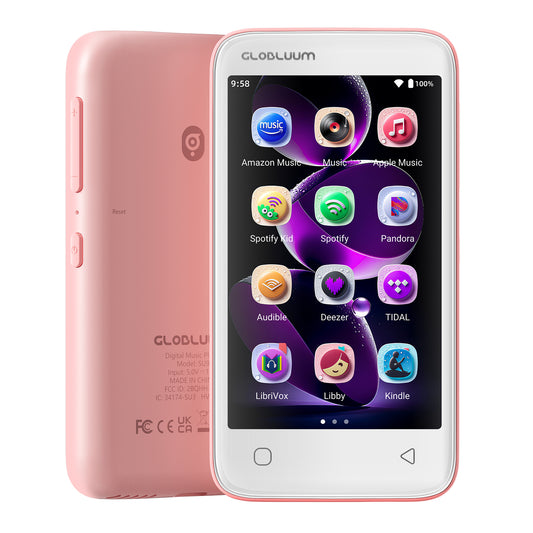
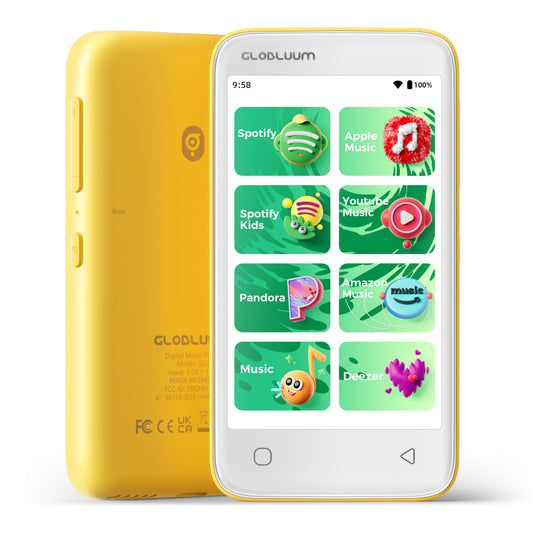
SU3 Safe Kids MP3 Player with Parental Controls. Supports Spotify Kids, Apple Music, Audible, Kindle. Great Gift for Kids.
Vendor:GlobluumRegular price $69.99 USDRegular price -
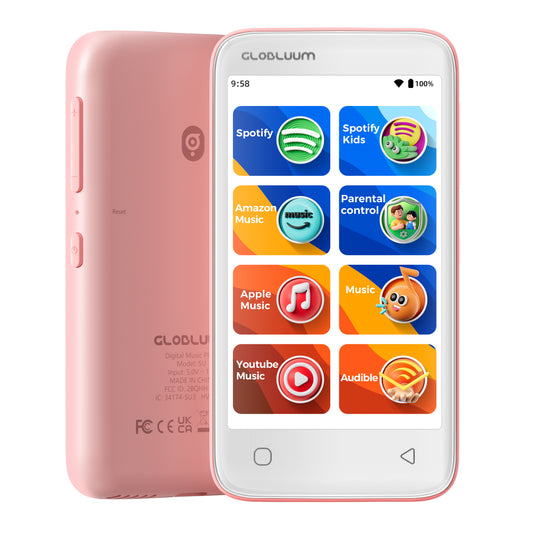
SU5 Digital Music Player for Kids, 4" Full Touch Screen MP4 with Spotify, Spotify Kids, Google Play, Audible and Speaker.
Vendor:GlobluumRegular price $59.99 USDRegular price -
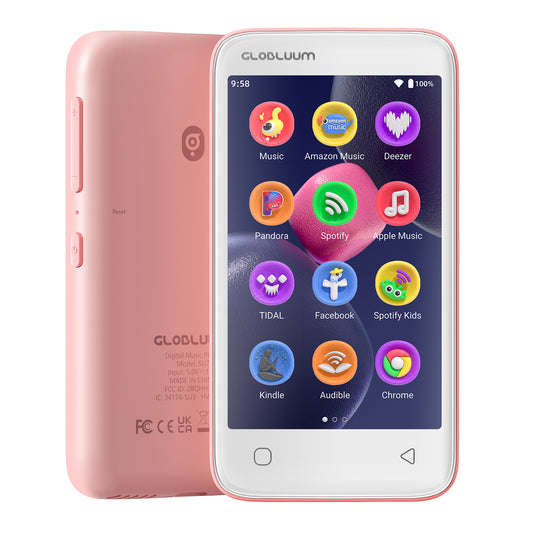
SU7 Digital Audio player with Bluetooth & Wi-Fi, mp3 Music player with Spotify, Pandora, Tidal, Deezer, Audible, Kindle and Speaker.
Vendor:GlobluumRegular price $69.99 USDRegular price