How to Disable Google Play & Factory Reset to Prevent Kids from Bypassing Parental Controls
You bought your child a music player. You set up Spotify Kids. You even turned on parental controls. But here's the thing: kids learn fast. In a few days, they might figure out — oh, just go to Settings and tap "Factory Reset," and all those restrictions are gone. Or open Google Play and download a browser or a game. And then…
Don't worry. You just need to disable two things, and that door will be locked tight. Let me walk you through it.
What exactly do you need to disable?
- Google Play — once disabled, your child can't download any new apps (no games, browsers, or social media)
- Factory Reset — once disabled, your child can't wipe all your settings and parental controls with one tap
Disable these two, and no matter how clever they are, they'll stay inside the boundaries you set.
Step-by-step instructions
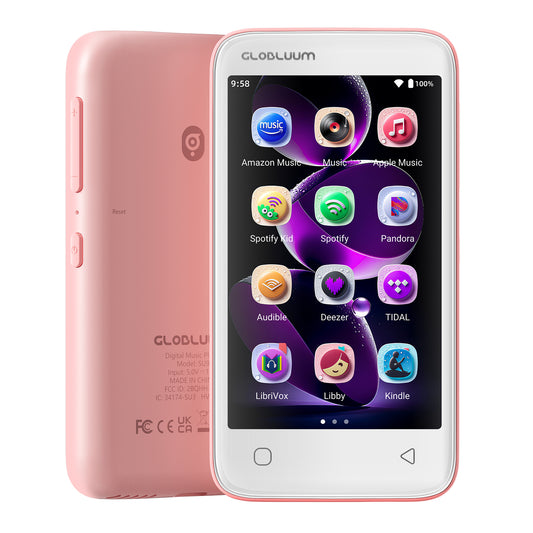
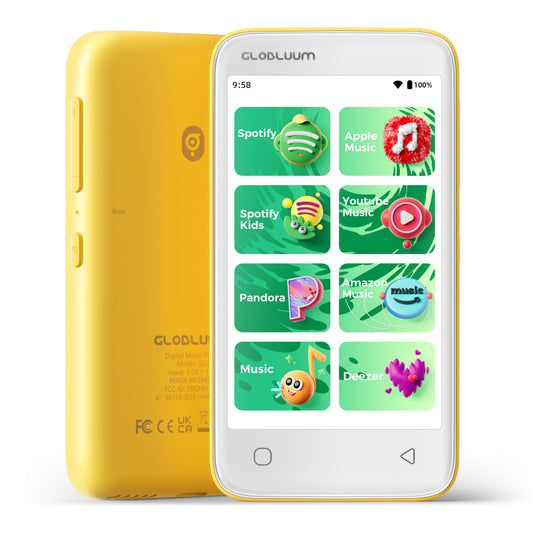
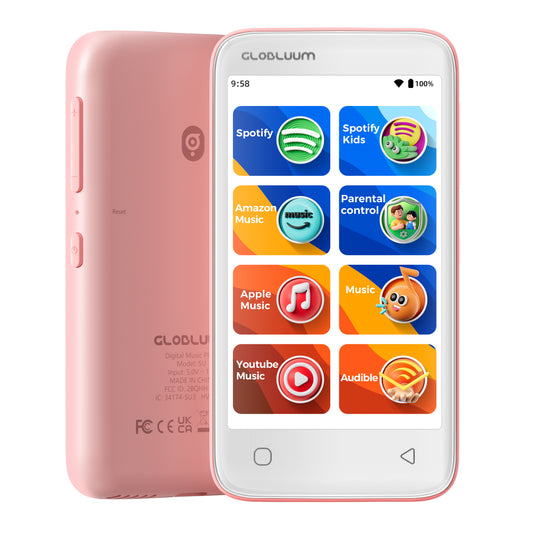
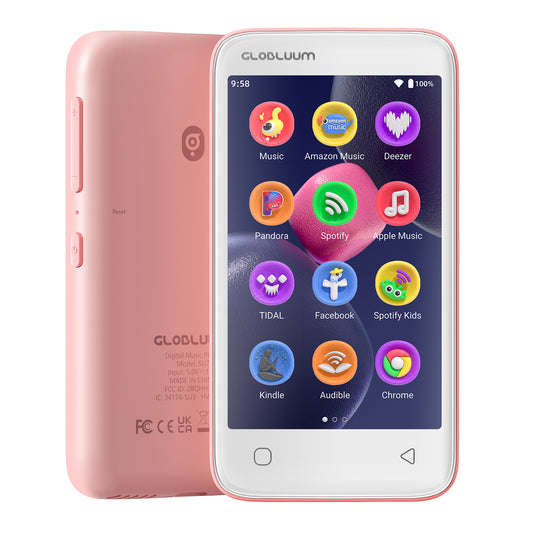
This player (Globluum) runs Android 14. Parental controls are hidden inside the Settings menu. Here's how to do it:
Step 1: Open Settings
Find the Settings icon (a gear ⚙️) on the home screen and tap it.
Step 2: Find "Parental Controls"
Scroll down the Settings list until you see Parental Controls. Tap it.
Note: If this is your first time, the system may ask you to set a parent password. Make sure your child does not know this password.
Step 3: Disable Google Play
Inside Parental Controls, you'll see a list of apps. Scroll down and find Google Play Store. Tap the switch next to it to turn it off (grayed out / disabled).
After this, if your child tries to open Google Play, they'll see a message saying "This app is disabled" and won't be able to use it.
Step 4: Disable Factory Reset
Still inside the same Parental Controls screen, find Factory Reset. Turn its switch off as well.
Once disabled, even if your child goes to Settings → System → Reset options, the "Factory Reset" button will be grayed out and unclickable.
Step 5 (optional but highly recommended): Hide the App Management menu
Some kids will try to go back to Settings, find "App Management," and re-enable disabled apps. To completely block that route, you can hide the App Management entry itself.
Inside Parental Controls, look for an option like "Hide App Management entry" and turn it on. Now your child won't even know where to go to re-enable Google Play.
Step 6: Save and exit
After completing the steps above, just exit Settings. No reboot needed. Your child can now only use the apps you've allowed, and they can't undo the restrictions on their own.
What if your child already knows what "Factory Reset" does?
Then you should definitely complete the steps above before they get any ideas. Once they perform a factory reset, all parental controls will be wiped, and the device will return to its out-of-box state. You'll have to set everything up again.
Also, don't forget to write down your parent password somewhere safe. If you forget it, you'll need to contact customer support for an unlock code (support@globluum.com). It's solvable, but it's a hassle. So just save yourself the trouble and keep the password somewhere only you know.
A quick note
After you disable Google Play, if you ever need to install a new app yourself (like a new audiobook app for your child), you can temporarily turn it back on, install the app, and then disable it again. Your child won't see any of this.
Same for Factory Reset. If you ever genuinely need to reset the device (say, you're selling it), you can temporarily enable it, do the reset, then disable it again.
Just keep them off for daily use.
Summary
The most annoying part of giving your child a dedicated music player isn't the device itself — it's that they always want to "see what else is on here." As long as you lock these two doors:
- Disable Google Play
- Disable Factory Reset
They can only move around inside the apps you've approved. You finally get to stop staring at the screen all day, and you don't have to yell to manage them.
Relax. You've set it up right. Your child can still enjoy music — they just can't wander off.
Globluum MP3 Player
Android 14 · Parental Controls · Preloaded Spotify / Apple Music / TIDAL / Hiby Music