Best Offline Workout Playlist Setup for Running – Using Spotify & Hiby Music
Share
What’s the most frustrating thing during a run? It’s not sore legs or hot weather. It’s when your phone suddenly says “No network connection” halfway through, and your music stops. Or right as the chorus hits, a notification sound cuts in. Your rhythm breaks — and so does your running pace.
If you have a dedicated Android music player, combined with Spotify offline downloads and Hiby Music for high‑quality local playback, you can build the perfect running music system. Let me walk you through it step by step.
Why do you need a dedicated music player for running?
- Offline playback, no signal dead zones – Deep in the park, on a track, or on suburban trails, cell signals are often unreliable. Offline playback on a music player simply works.
- Leave your phone behind, run freer – Let your phone handle work and family calls. Keep the MP3 player for yourself — run freely to your own beat.
- A dedicated playlist makes your run smoother – Build your own running playlist. Your rhythm will feel stronger, and your body will move more naturally.
- No distractions, truly clear your mind – No message notifications, no incoming calls. Just you and the music.
Step 1: Download offline playlists in Spotify
Spotify Premium users can download songs for offline playback. Here’s how:
- Open Spotify on the player and log into your Premium account.
- Create a new playlist — name it something like “Running 2026”.
- Add songs that work well for running (more on song selection later).
- Open that playlist and tap the “Download” toggle (down arrow icon). Wait for the download to finish (best done over Wi‑Fi).
Once downloaded, you can play those songs even when the player is completely offline.
Note: Spotify requires an online check‑in every 30 days to verify your subscription, but daily runs don’t need a connection.
Step 2: Manage lossless local music with Hiby Music
Spotify downloads are lossy (about 320kbps OGG). If you have higher‑quality music collections (e.g., ripped CDs or purchased FLAC files), Hiby Music is the better choice.
Steps:
- Transfer lossless music files (FLAC/WAV/APE/DSD) to the player’s “Music” folder via computer or Send Anywhere. For detailed instructions, click the link below:
https://globluum.com/pages/how-to-transfer-files-from-computer-to-your-player-via-send-anywhere-browser-method - Open the Hiby Music app. It will automatically scan internal storage and the SD card.
- Create a playlist (e.g., “Run FLAC”) and add your favorite running tracks.
- Tap the three dots next to the playlist and select “Download” — but since Hiby plays local files directly, no extra download is needed. Just keep the files on your device or SD card.
Pro tip: Hiby Music supports native DSD decoding and a built‑in equalizer. For running, try the “Bass Boost” or “Rock” preset to make the beat more prominent.
Step 3: How to choose songs – the science of running playlists
Not every song works for running. A good running playlist should consider tempo (BPM) and energy curve.
- Match BPM to cadence – Many runners have a cadence between 160 and 180 steps per minute. Choosing songs with a BPM of 160–180 makes synchronization easiest. Genres like EDM, rock, and dance pop work well.
- Warm‑up (first 5–10 minutes) – BPM 120–140, slightly slower, to ease your body into motion.
- Steady‑state run (middle 20–30 minutes) – BPM 160–180, consistent rhythm.
- Sprints / intervals – BPM 180+, fast beats to boost explosive power.
- Cool‑down (last 5 minutes) – BPM 100–120, gradually wind down.
Recommended genres:
- Electronic / House (Daft Punk, The Chemical Brothers)
- Rock (Imagine Dragons, Foo Fighters)
- Dance pop (The Weeknd, Dua Lipa)
- Film scores (Rocky theme, etc.)
Tools: Search Spotify for pre‑made playlists like “Running 180 BPM”. You can also measure the BPM of your own songs using “Tap BPM” websites.
Step 4: Device setup and how to carry it
- Storage – Use at least a 128GB MicroSD card (the player supports up to 1TB), giving you room for thousands of lossless tracks.
- Carrying methods – During a run, put the player in an armband, a running belt, or your shorts’ pocket. The device weighs only about 98 grams — you’ll barely notice it.
- Bluetooth headphone pairing – Pair your Bluetooth headphones in advance (LDAC support gives better sound). Alternatively, use wired headphones via the 3.5mm jack.
- Offline mode confirmation – Before heading out, turn off Wi‑Fi and Bluetooth (if using wired headphones). This significantly extends battery life. The player’s audio runtime is up to 26 hours.
Final workflow summary
- Select songs – Build a Spotify playlist based on BPM and energy phases.
- Download – On Wi‑Fi, download that playlist in Spotify. Also copy lossless files into Hiby Music’s folder.
- Combine – You can also add Spotify‑downloaded songs into Hiby Music’s playlist if you prefer to manage everything in Hiby. But note that Spotify’s downloaded files are encrypted and cannot be played in other apps. So the recommended approach is: use Spotify offline for streaming content, and Hiby Music local playback for your high‑quality personal collection.
- Go for a run – Grab the player + headphones, and enjoy a dropout‑free, interruption‑free running experience.
A final tip
If you truly love running and want music to become your pacing partner, spend 10 minutes carefully crafting an offline playlist. It’s far more effective than hitting “shuffle” on a random list. Your cadence will be steadier, and your mood will be better.
Give it a try. Your next PB might just be hidden in your playlist.
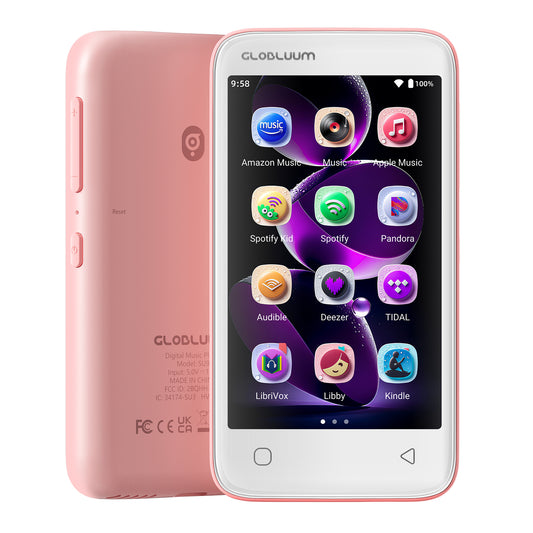
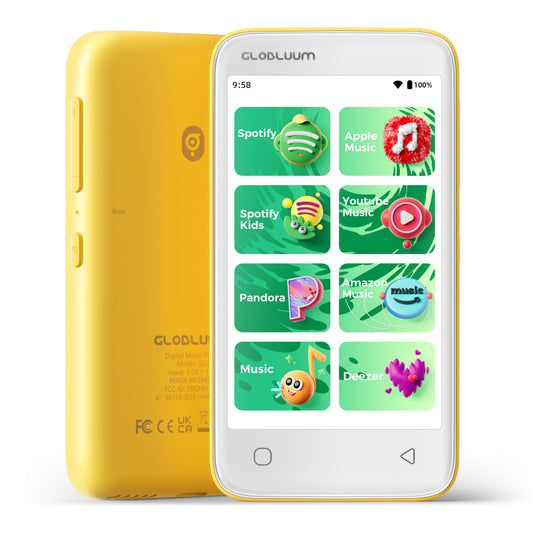
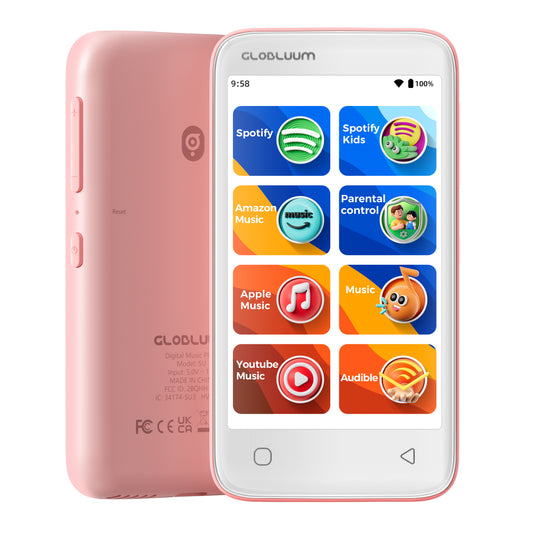
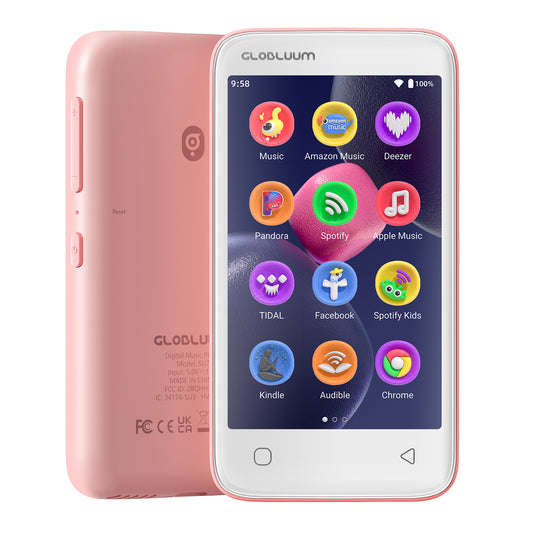
Globluum MP3 Player
Android 14 · Preloaded Spotify & Hiby Music · Supports up to 1TB expansion · 26h audio battery · Perfect for running and fitness